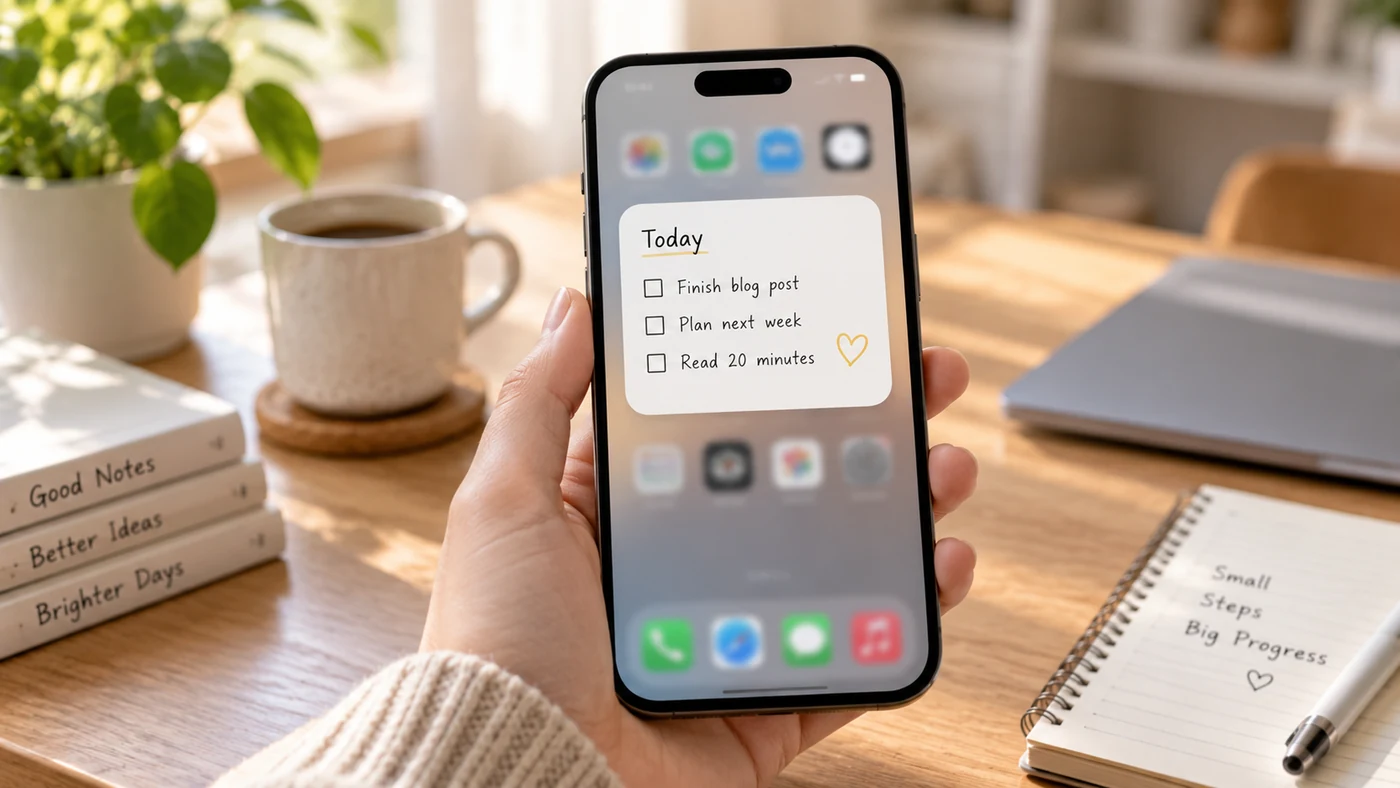
A notes widget can make capture and review faster, but “add a notes widget” can mean three different things: opening a new note quickly, seeing recent notes at a glance, or keeping one specific note visible. Those options depend on your phone and the app you use. First decide which outcome you need, then use the iPhone or Android steps below to add the available widget and test what it actually displays.
Decide What You Want the Widget to Do
Before changing your home screen, choose one primary job for the widget:
- Quick capture: Open a fresh note with as few taps as possible.
- At-a-glance review: Surface recent notes, lists, or reminders when you unlock your phone.
- A fixed reference: Keep a short checklist or key detail easy to find.
These are not interchangeable. Some apps offer only a launch shortcut; others provide a view of selected or recent content. Check the app’s current widget options before assuming it can display or edit a particular note.
Add a Notes Widget on iPhone
On iPhone, you can add widgets from the Home Screen edit mode:
- Touch and hold an empty area of the Home Screen until the apps begin to move.
- Tap Edit, then choose Add Widget.
- Search for your notes app.
- Select an available widget size and tap Add Widget.
- Move it to the position you want, then tap Done.
Apple’s widget controls let you add, edit, and arrange supported widgets, but the available sizes and settings come from the individual app. [1]
Add a Notes Widget on Android
The exact labels vary by device maker and Android version, but the general path is similar:
- Touch and hold an empty area of your Home Screen.
- Tap Widgets.
- Find your notes app in the widget list.
- Touch and hold the widget, then drag it to the Home Screen.
- Resize or move it if your launcher offers those controls.
Android’s official guidance notes that widget availability and configuration can vary by app and device. [2]
Set Up a Widget for Fast Notes
After adding the widget, open it once and check its behavior. A quick-capture widget should open the right note type without extra navigation. A review widget should show information you can understand without opening the app. If the widget offers configuration, set it up around one real use case—for example, a grocery list, a daily check-in, or a project checklist.
EasyNotes supports adding a Widget to your mobile Home Screen. Use that as a starting point for a fast-note or reminder workflow, then confirm the available widget options on your phone before relying on it to show a particular note or perform a particular action.
If your goal is a reminder-driven workflow, the widget is only one part of the system. Pair it with an actual note reminder and decide whether you need a daily, weekly, monthly, or yearly cadence. How to Set Daily Reminders explains how to think through the reminder habit itself.
How to Put Notes on Your Screen Without a Widget
You may not need a widget at all. If your main need is to keep one idea visible, consider a pinned app shortcut, a small home-screen reminder, or a sticky-note-style workflow. The right option depends on whether you need to edit the content, receive a notification, or simply see it often. For ideas that emphasize visible, lightweight reminders, see Sticky Notes.
Restore a Missing Notes Widget on iPhone
If a widget disappeared, start by searching the widget gallery again and adding it back through Home Screen edit mode. If the app is listed but its widget is not, update the app and iPhone software if updates are available, then check the app’s current support information. Apple’s widget instructions cover the normal add and edit path for supported widgets. [1]
Do not assume a restored widget will keep the same content configuration. Open it after re-adding it and confirm what it shows.
Can You Add a Notes Widget to the iPhone Lock Screen?
iPhone supports Lock Screen widgets where an app provides a compatible option. The setup is separate from the Home Screen, and the app determines which information or actions it makes available. Use the Lock Screen customization controls, then check the notes app in the widget picker. [1]
If you are comparing note apps primarily for widgets, include the widget’s real behavior—quick capture, recent-note view, or a configurable reference—in your decision instead of treating “has a widget” as a complete answer. Best Note-Taking Apps can help you compare the broader workflow.
Frequently Asked Questions
How do I add a notes app widget to my home screen?
On iPhone, enter Home Screen edit mode, choose Add Widget, find the notes app, select an available size, and add it. On Android, touch and hold an empty Home Screen area, open Widgets, then drag the app’s available widget into place. The exact widget choices depend on the app and device. [1][2]
How do I get my notes widget back on my iPhone?
Touch and hold an empty Home Screen area, choose Edit and Add Widget, then search for the app again. If it does not appear, confirm that the app and iPhone are up to date and review the app’s current support information. [1]
Can I add a notes widget to my iPhone lock screen?
You can add one when the notes app provides a compatible Lock Screen widget. Open Lock Screen customization, select the widget area, and look for the app. What the widget can show or do is determined by that app. [1]
Conclusion
Choose a notes widget based on the action you need most: capture quickly, check information at a glance, or keep a reference close. Add one on your own device, test it with a real note for a few days, and keep it only if it shortens the path to the habit you want to maintain.
If you need a mobile Home Screen Widget alongside quick capture and note-level reminders, EasyNotes can be a natural fit for a personal notes workflow. Confirm the Widget options available in your current app version before designing a setup around a fixed note, a specific size, or Lock Screen access.