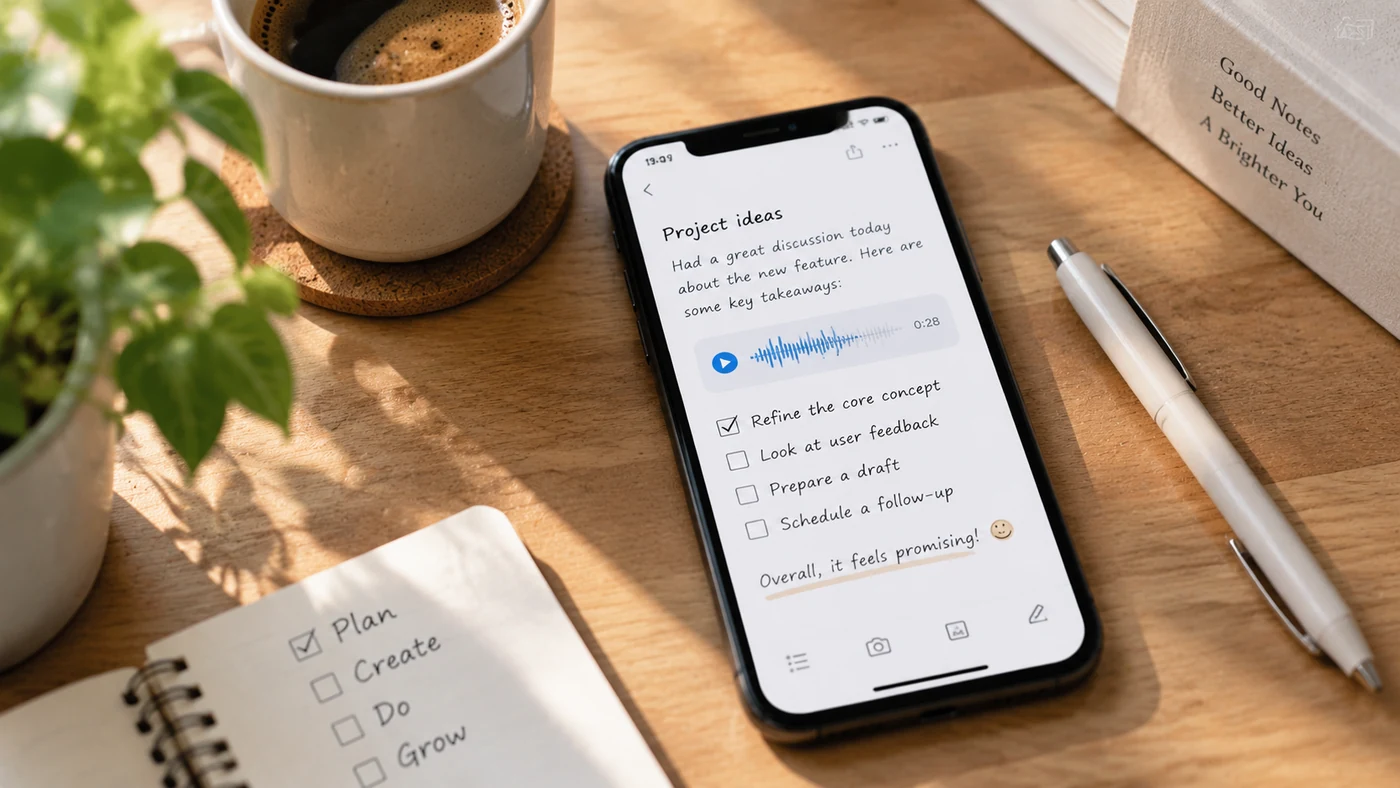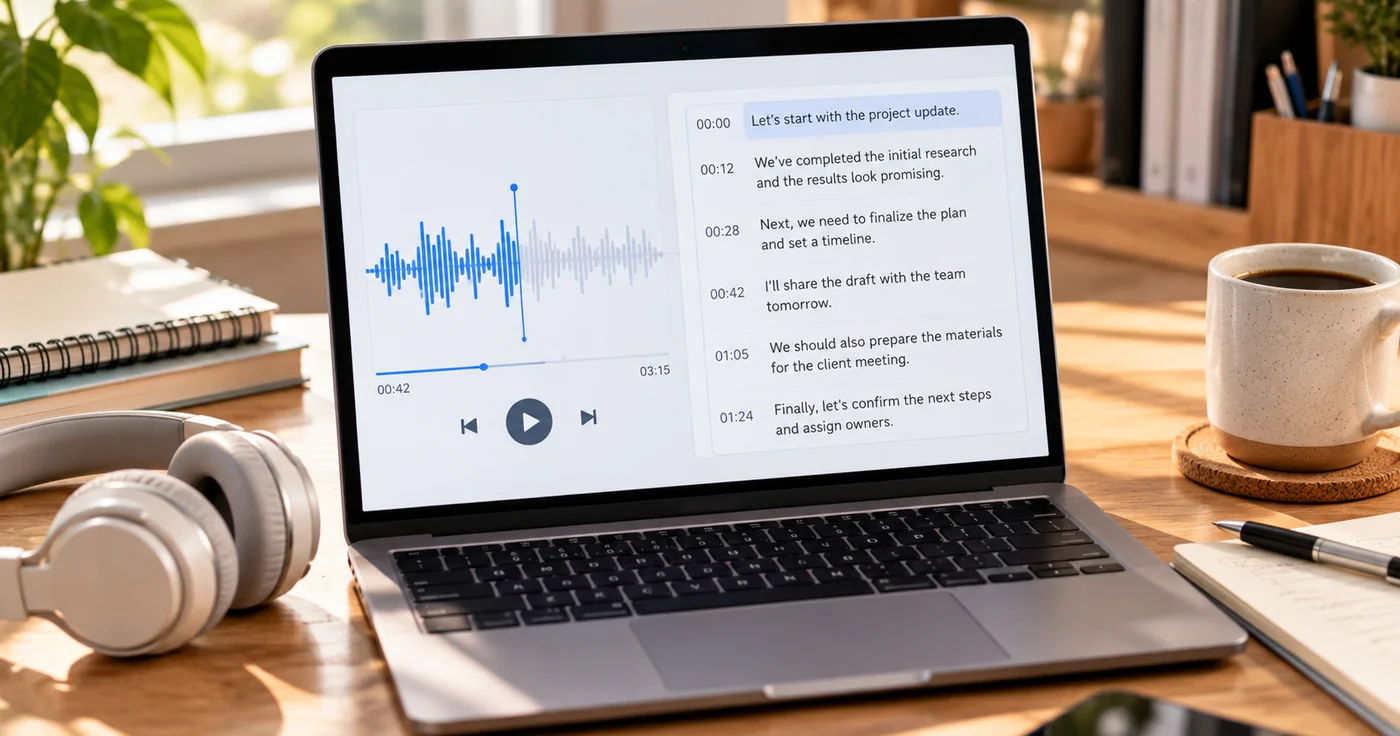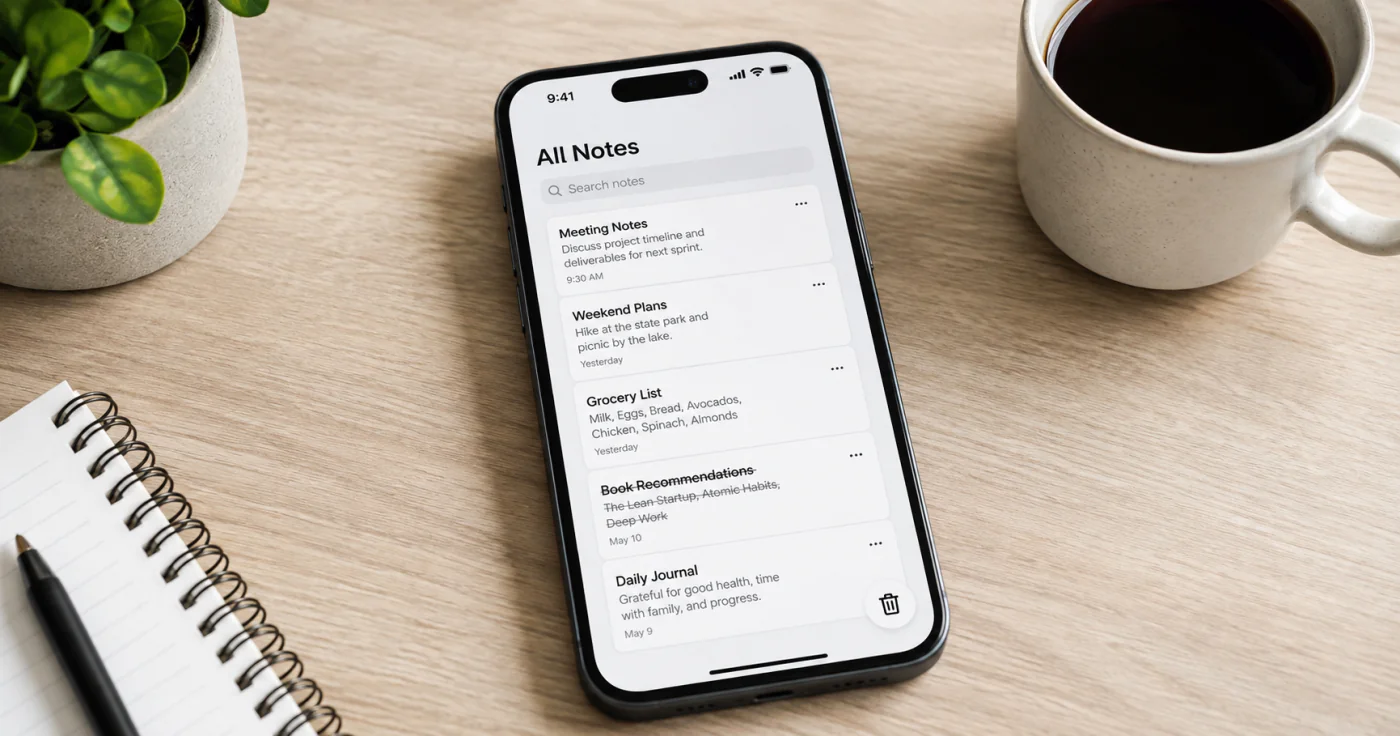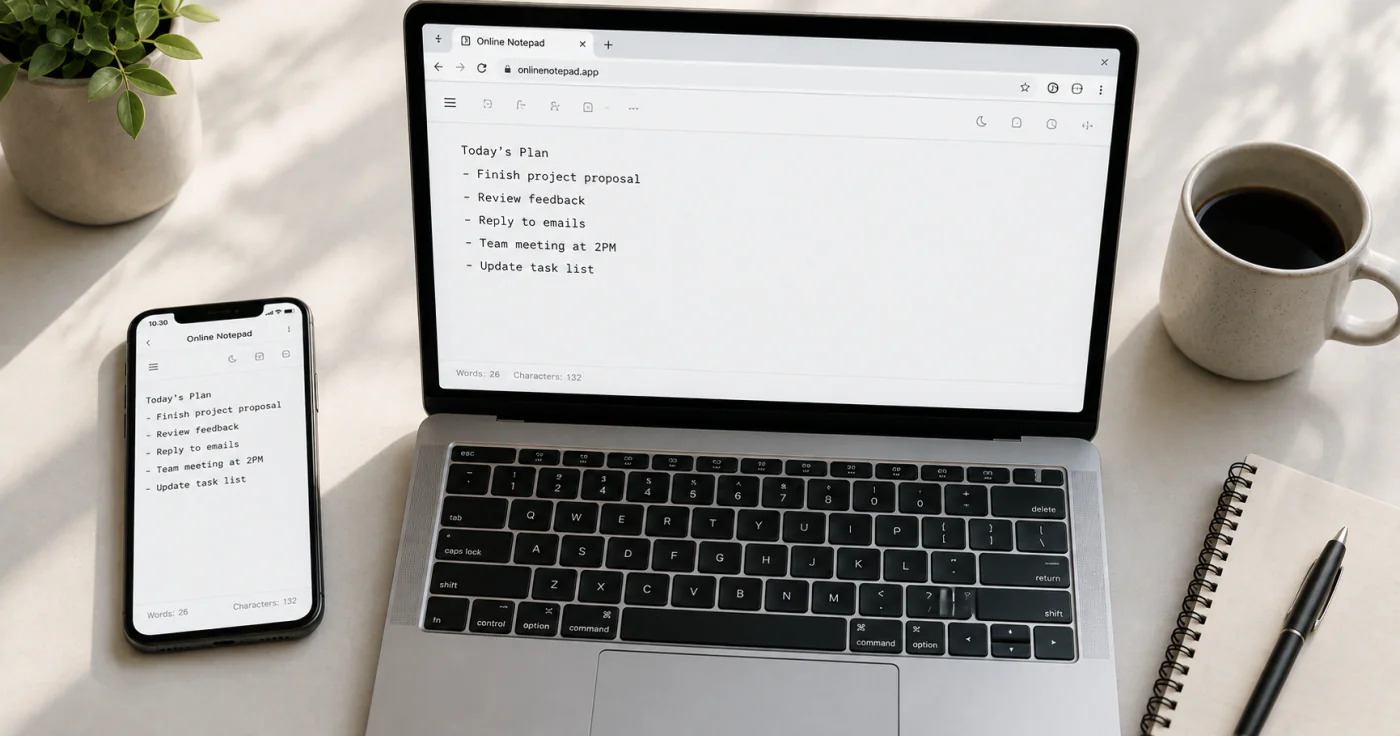
A free online notepad is a browser text box that autosaves as you type and needs no account. This guide covers how to use one well — autosave, offline editing, exporting, and the privacy limits that matter — plus when a synced notes app is the better fit for text you want to keep.
Why use an online notepad
It opens instantly, asks for nothing, and is perfect for a scratchpad, a quick draft, or holding text between two windows. Because everything runs in your browser, you can start writing in a single click and close the tab without installing anything. For throwaway text — a copied address, a draft email, a snippet to paste elsewhere — it's faster than opening a full app.
How to use it well
- Start typing — autosave begins on its own. Most tools save your text to the browser's local storage about a second after you stop typing, so a refresh won't lose your work [1].
- Work offline after the first load. Once the page has loaded, editing and autosave keep working without an internet connection [1].
- Export before you clear data. Download your note as
.txtor.md, or copy the text out. Clearing browser data or using private mode deletes local notes, so keep a real file of anything important [1]. - Treat it as private, not secret. Notes stay in your browser and are not uploaded to a server [2]. But local storage usually isn't encrypted, so don't keep passwords there — use a password manager instead.
Privacy and safety
A few habits keep a browser notepad safe. Avoid it on a shared or borrowed computer, where anyone who opens the same browser can see your text [2]. Private or incognito windows are safer for the session but wipe everything the moment you close them, so they're worse for anything you'll want later. And because local storage isn't encrypted, treat the notepad as "visible to anyone with the device," not as a locked vault.
If your text didn't save
If you closed the tab too soon, don't panic. Reopen the same browser and the same tool — many keep your last text in local storage even after a refresh, so it may still be there [1]. Some tools also keep a short version history you can roll back to. The one thing that erases everything is clearing browser data or switching to a different browser profile, so export first if the text matters.
Online notepad vs. a synced notes app
| Online notepad | Cloud-synced notes app | |
|---|---|---|
| Opens | One click, no account | After install or sign-in |
| Storage | Browser local storage (per device) | Your account, across devices |
| Export | .txt / .md download | PDF / shareable copy |
| Sync | No — stuck on one browser | Yes — follows you to phone and laptop |
| Privacy | Local, not encrypted | Account-based, on your devices |
An online notepad keeps text on a single device and won't appear on your other devices [1][2]. If you want the same quick-capture feel but with your notes following you from phone to laptop, a cloud-synced app like EasyNotes keeps them in one place instead of locked to a single browser.
FAQ
Yes — it stays in your browser's local storage and isn't uploaded to a server [2]. Just remember local storage isn't encrypted, so avoid shared computers and don't store passwords there.
Yes. After the page first loads, editing and autosave work without an internet connection [1]. You only need the connection to open it the first time.
Usually no. Browser notepads store per device, so your laptop and phone don't share them — export a file or use a synced app to move text between machines [1].
Reopen the same tool in the same browser; many restore the last text from local storage, and some keep a version history [1]. Avoid clearing browser data, which would erase it.
Conclusion
A free online notepad is the fastest way to capture text without installing anything. Use autosave, keep it off shared computers, and export before you clear your browser — and remember it lives on one device. Reach for a synced app when your notes need to travel with you.
References
- EverydayTools.pro. "Online Notepad Guide"
- Calcuva. "Online Notepad"