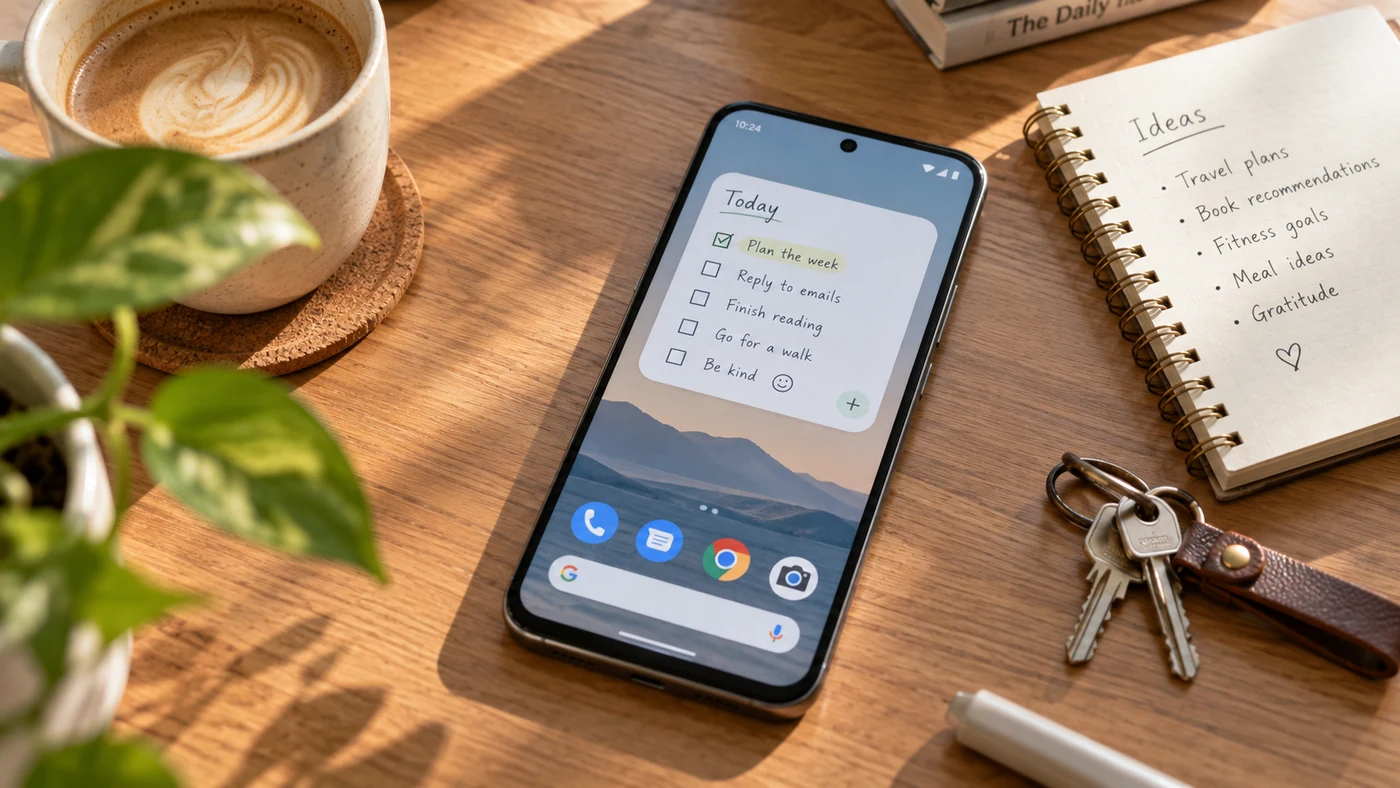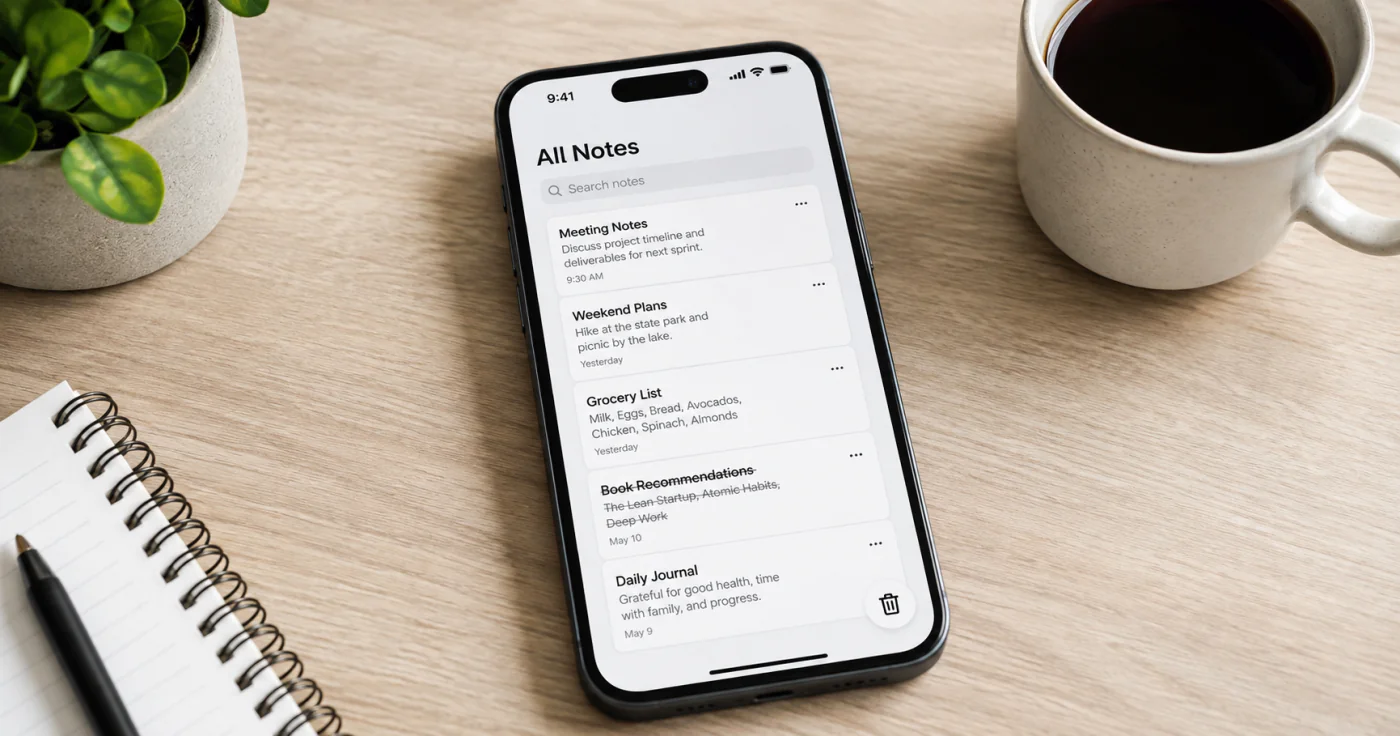
Most notes apps don't erase a note the moment you tap delete. Instead, they move it to a temporary holding folder — often called Recently Deleted, Trash, or Recycle Bin — where it sits for days or weeks before being wiped for good. That window is your recovery chance. Here's how to recover deleted notes before they disappear, on the devices and apps people use most.
Check Recently Deleted First (the #1 Step)
Before you panic or reinstall anything, open the app and look for a "Recently Deleted," "Trash," or "Recycle Bin" folder. The note is very often still there. Apple Notes holds deleted notes for 30 days[1]; OneNote's Notebook Recycle Bin keeps them for up to 60 days[2]. The clock is running, so check today.
How to Recover Deleted Notes: Step-by-Step
- Open the app and find the holding folder. Look for Recently Deleted, Trash, or Recycle Bin in the folder or history list.
- Look inside before assuming it's gone. Deleted notes hide here, not in your main list.
- Select the note and choose Restore or Move. This returns it to your normal notes.
- Check the cloud version too. Sign in at iCloud.com or OneDrive and look for the same folder there — the delete may not have synced everywhere yet.
- Check your platform backup. iCloud Backup (iPhone) or Google Backup (Android) may hold a copy from before the deletion.
- Try undo if it just happened. Many apps let you undo a delete with Ctrl+Z, Cmd+Z, or a shake-to-undo gesture.
On iPhone (Apple Notes)
Open Notes, tap the folder list, and tap Recently Deleted. If you don't see it, there are no notes there to recover. Swipe left on a note and tap Move to send it back to a folder[1]. Notes stay here for 30 days, then are erased permanently.
On Android & OneNote
In OneNote, go to the History tab and open Notebook Recycle Bin to restore pages or sections deleted in the last 60 days[2]. If you just deleted text or an image, press Ctrl+Z to undo. For notes stored in OneDrive, the Deleted Notes view can also surface recently removed pages.
What If the Trash Folder Is Empty?
- Check other accounts and devices. You may be signed in to a different account than the one that held the note.
- Check your platform backup. iCloud Backup or Google Backup may predate the deletion.
- Check the app's main list and search. A note can land in an unexpected folder after a sync glitch.
- Contact support. Some services keep server-side copies for a short time even after the local trash is cleared.
The best fix is prevention: keep your notes in one reliable app such as EasyNotes so they're easier to find and less likely to scatter across devices in the first place, and turn on cloud backup where available.
FAQ
Open the Notes app, tap the folder list, then tap Recently Deleted. Swipe left on the note and choose Move to send it back to a folder. Apple Notes keeps deleted notes for 30 days before erasing them[1], so check as soon as you notice.
Most apps move deleted notes to a temporary folder — Recently Deleted, Trash, or Recycle Bin — instead of erasing them at once. They stay there for a set window (30 days in Apple Notes, up to 60 days in OneNote[2]) before permanent deletion.
In Apple Notes, deleted notes are erased after 30 days and can't be restored from Recently Deleted. Your next options are a platform backup (iCloud Backup or Google Backup) or contacting support, since some services keep brief server copies. Act quickly — backups can be overwritten.
First check the app's Trash or Recycle Bin. In OneNote, use the Notebook Recycle Bin under the History tab (up to 60 days[2]). Also check your Google Backup and any cloud version of the app. If you deleted something seconds ago, try undo with Ctrl+Z or a shake gesture.
Conclusion
Recovering a deleted note is usually a matter of checking the right folder fast. Open Recently Deleted, Trash, or Recycle Bin first, then the cloud and your backup. And going forward, keep your notes in one synced, backed-up place so a delete is a recoverable hiccup, not a disaster.
References
- Apple Support. "Delete and recover notes in Notes on iPhone"
- Microsoft Support. "Recover deleted notes"