Voice notes are audio recordings of your thoughts, captured by speaking instead of typing. Photo notes attach an image — a receipt, a whiteboard, a label — to a written note. Together they let you capture things faster than typing allows. Here's how to take voice and photo notes, when each format works best, and how to keep them from becoming a messy pile.
When to Use Voice Notes (vs Typing)
Reach for voice when your hands are busy, when the thought is flowing faster than you can type, or when tone matters — a joke, a song snippet, the exact way someone said something. Voice is also kinder when you're tired. Use typing when the note needs to be searchable fast or when you're in a quiet room where talking would be odd.
How to Record a Voice Note: Step-by-Step
- Open your phone's voice recorder or notes app. Most phones have a built-in recorder; many notes apps also record inside a note.
- Tap record and say the thought in one take. Don't wait for the perfect opener. State the date and topic first so you know what it is later.
- Name it immediately. "Aug 10 — client call follow-up" beats "Audio 447."
- Trim or discard the rambling parts. A 20-second clip is more reusable than a 4-minute ramble.
- Move it into the right note. Attach or paste it where it belongs so it isn't orphaned in a recordings folder.
When to Use Photo Notes
Photos shine for things that are slower to describe than to snap: a parking spot, a meeting whiteboard, a product label, a recipe on a menu, a broken item for a return. If typing the detail would take longer than aiming your camera, take the photo and add one line of context.
How to Add a Photo to a Note: Step-by-Step
- Open the note you want to attach to.
- Tap the image or attach button. This is usually a picture icon in the toolbar.
- Take a new photo or pick one from your library.
- Add one line of context right under the image — what it is and why it matters.
- File or tag it so you can find it later.
How to Keep Voice & Photo Notes Organized
- Name everything at capture. Date plus topic. Future you will thank you.
- Add one line of context. A photo without a note is a mystery in a month.
- Group by project or trip. One note per project keeps clips and images together.
- Back them up. Voice and photo files are easy to lose in app switches; sync or export them so they survive a device change.
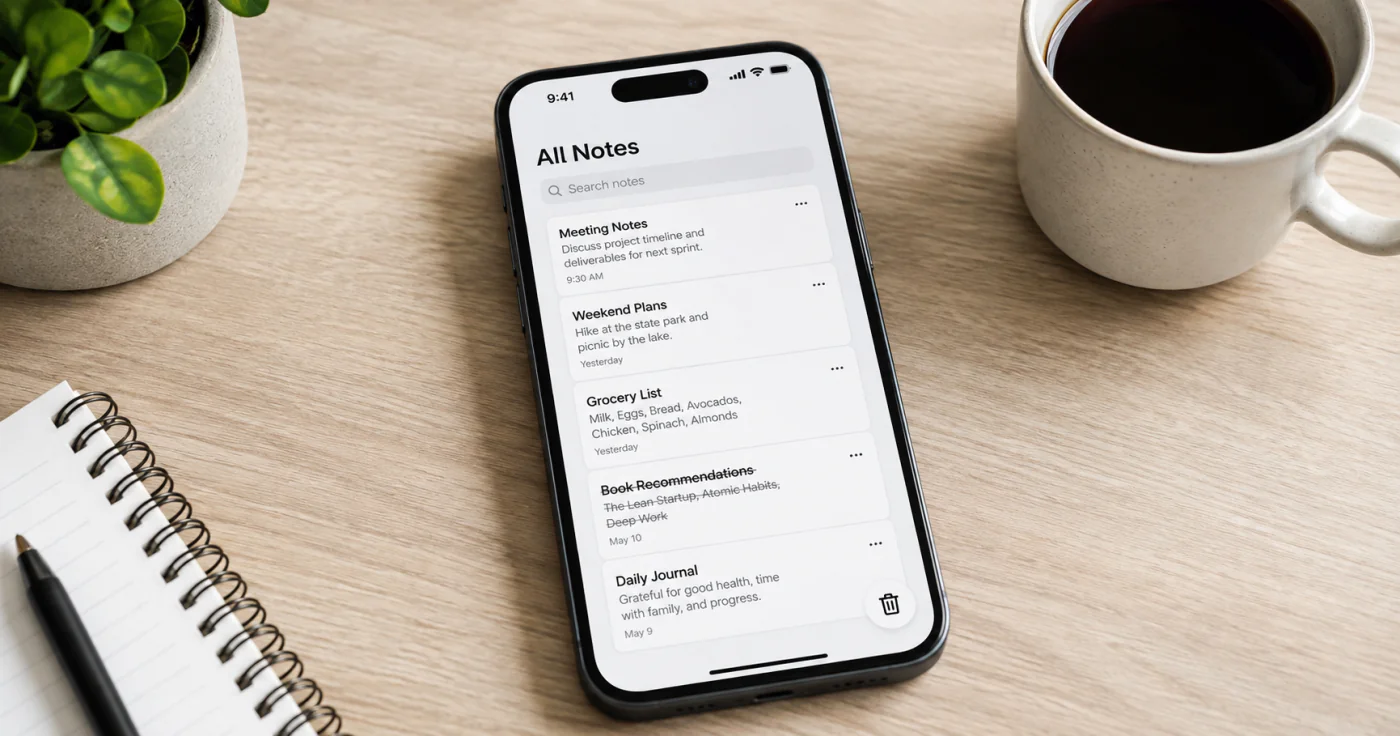
- Use your phone's tools, then consolidate. A notes app such as EasyNotes is a convenient place to keep your written notes, and you can pair it with your phone's voice recorder and camera to build richer entries without scattering captures across three apps.
Research on how we learn from combined text, sound, and images suggests mixing formats can make a memory stick better than words alone[1] — which is the real case for voice and photo notes.
FAQ
Open your phone's voice recorder or the recording option inside your notes app, tap record, and say the thought in one take — lead with the date and topic. Name the clip right away, trim the rambling parts, and move it into the matching note so it isn't lost in a recordings folder.
Open the note, tap the image or attach button, then take a new photo or pick one from your library. Add one line of context under it — what it is and why it matters — and file or tag the note so you can find it later.
Neither is better; they fit different moments. Voice wins when your hands are busy, the thought is flowing, or tone matters. Typing wins when you need fast search or quiet. Many people keep both and pick by situation.
Name every clip and photo at capture with a date and topic, add one line of context to each image, and group them by project or trip in a single note. Back them up by syncing or exporting, and consolidate captures from your phone's recorder and camera into one notes app so nothing scatters.
Conclusion
Voice and photo notes capture what typing can't — speed, tone, and the things that are faster to snap than to describe. Record in one take, name everything, and add a line of context. Do that, and your captures become a resource instead of a junk drawer.
References
- Mayer, R. E. (2009). "Multimedia Learning" (2nd ed.). Cambridge University Press.