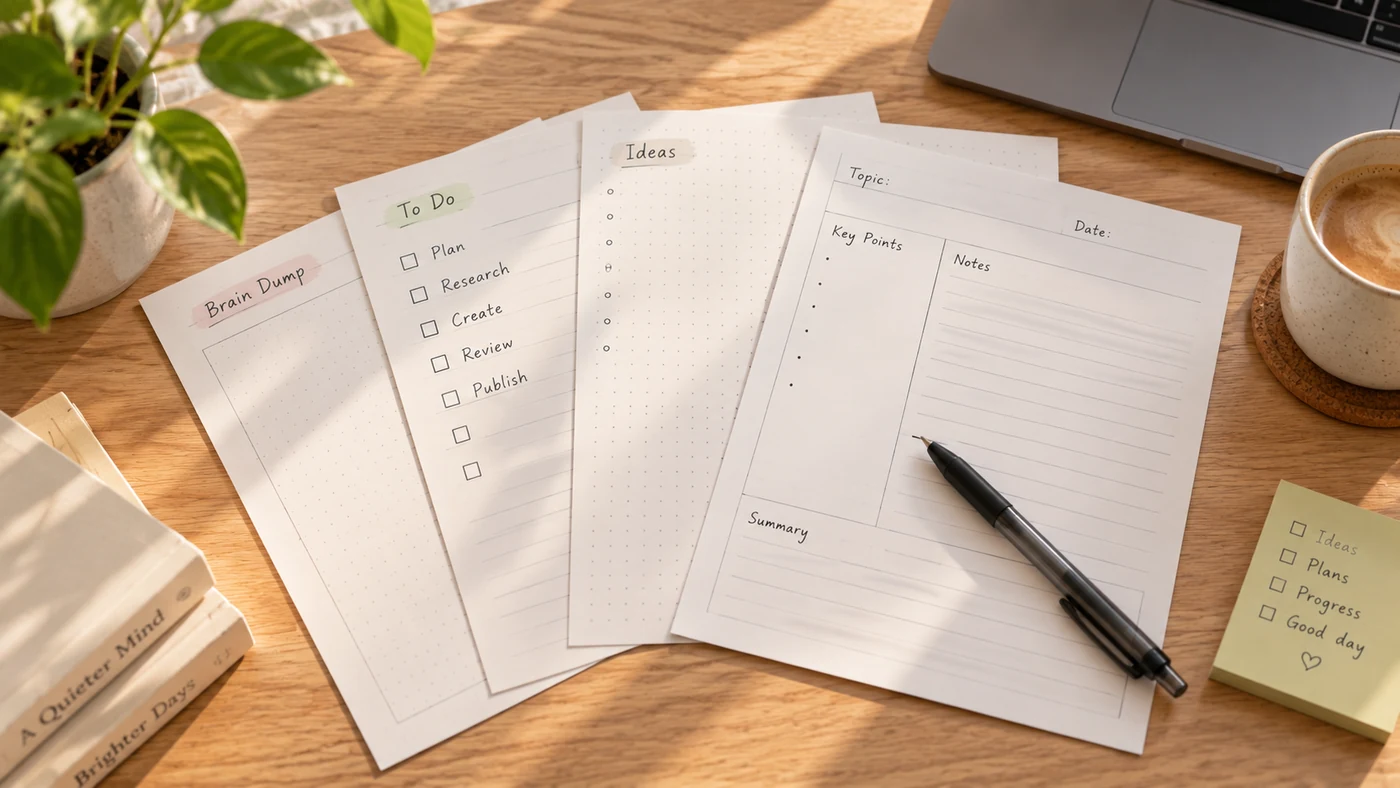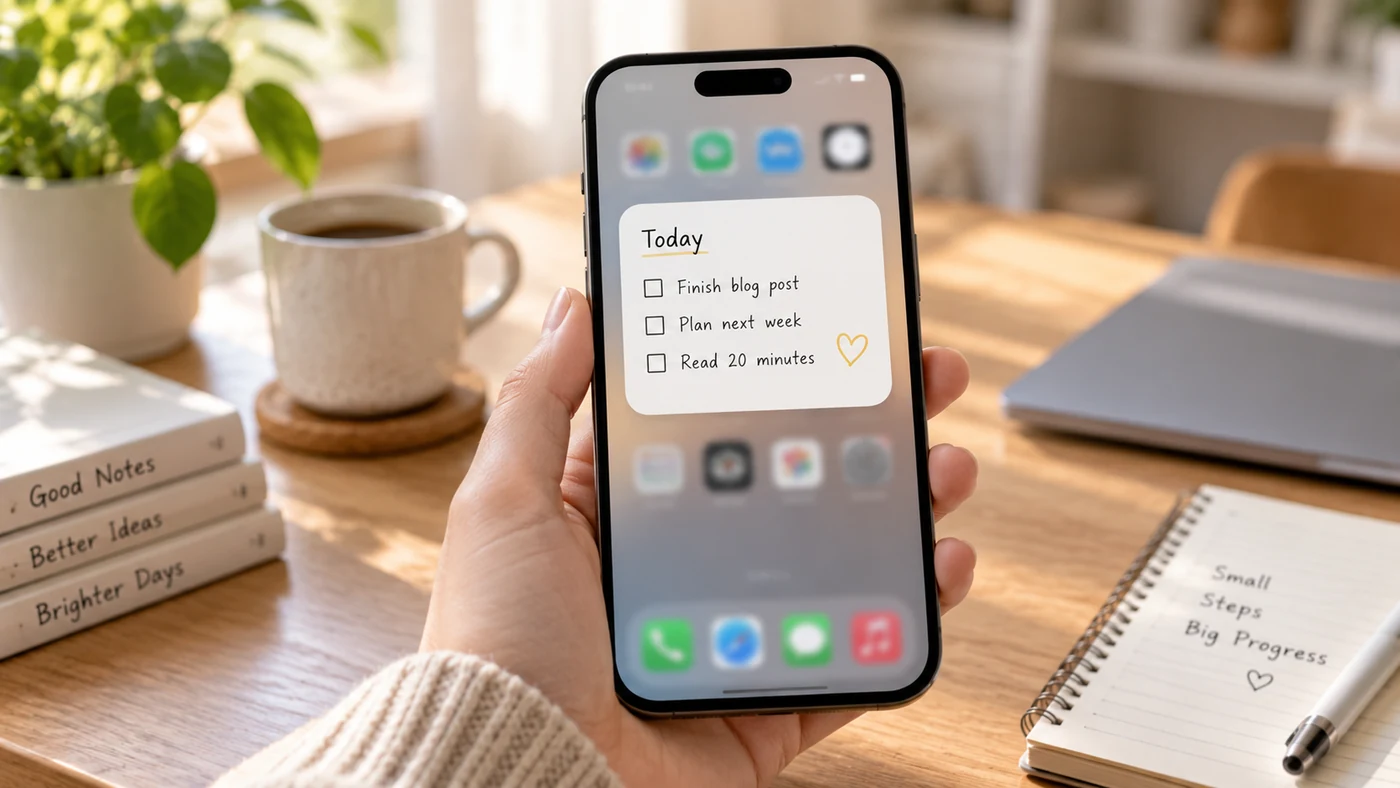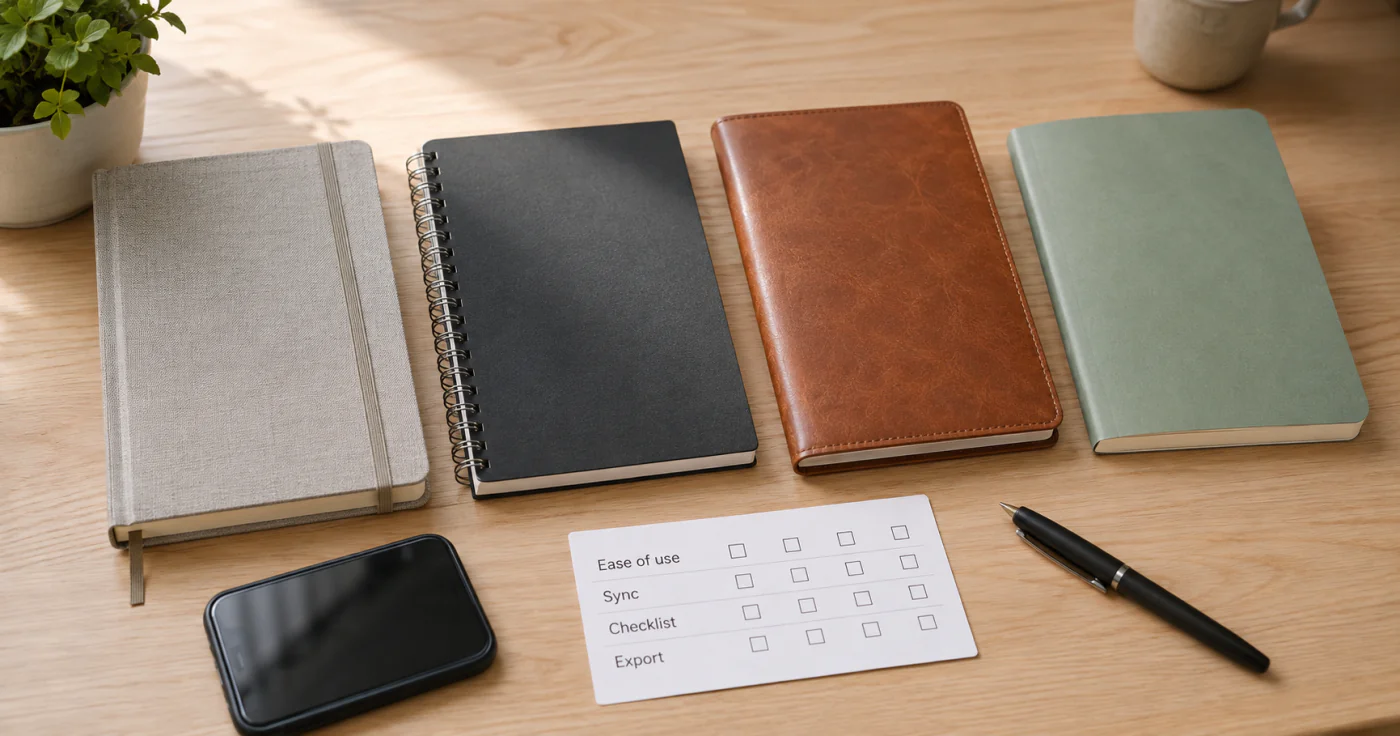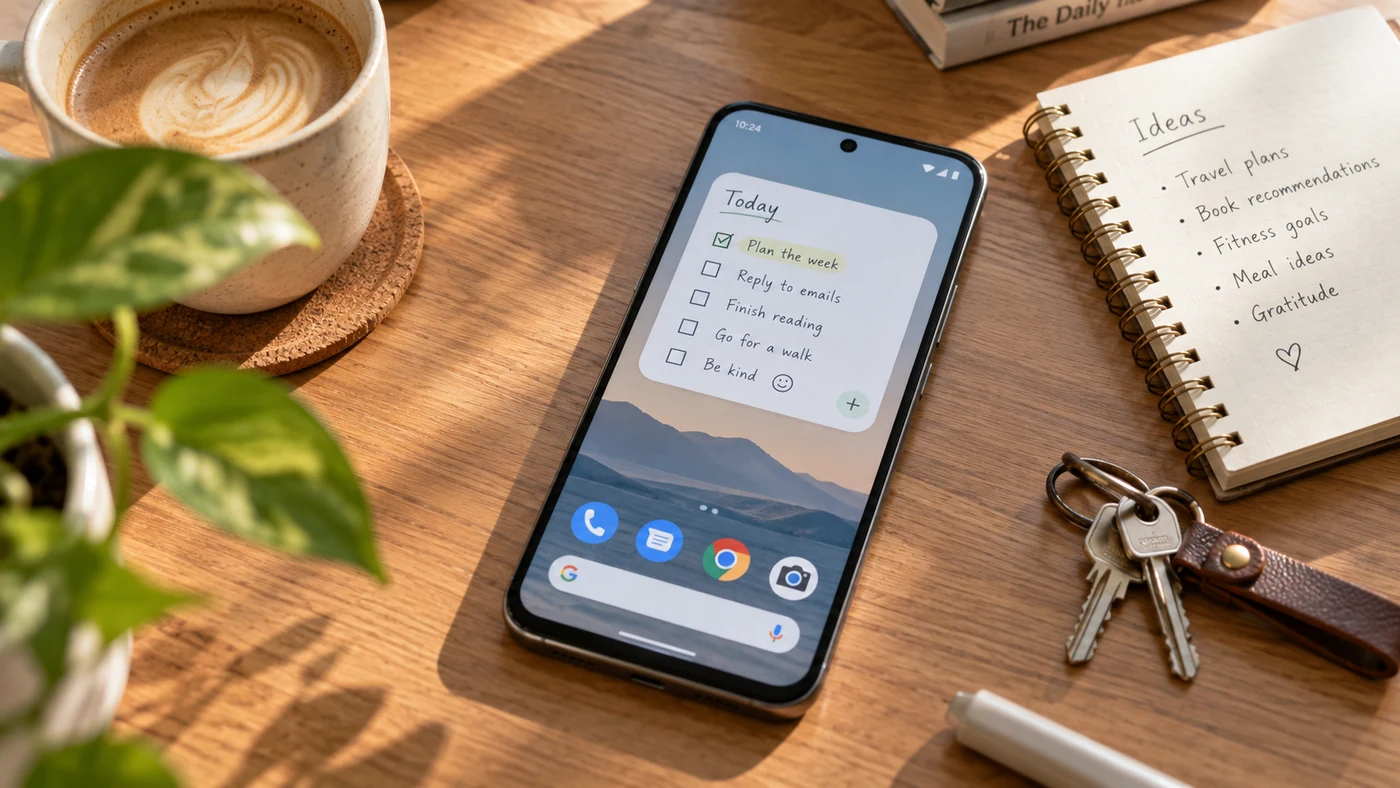
The best notes app for Android depends on what you need to reach in a few seconds: a widget, a reminder, a handwritten page, or an organized archive. Start with the job you repeat most often, then compare each app's capture speed, organization, and device fit.
What to Compare Before You Choose
| If you need to... | Prioritize... | Check before committing |
|---|---|---|
| See notes without opening the app | A useful Home Screen widget | Whether it shows one note, a collection, or quick-capture actions |
| Remember a task at the right time | Per-note reminders | Notification and recurrence controls |
| Keep a growing archive manageable | Search, labels, folders, or categories | How quickly you can retrieve a note after a week |
| Write or annotate by hand | Ink tools and selection controls | Your phone, tablet, and stylus support |
| Move between devices | A clearly documented sync or backup path | Which accounts and platforms are supported |
Do not treat “free” as a complete answer. A free app can still have limits, ads, storage rules, or a workflow that makes retrieval difficult.
1. Google Keep: Best for Widgets and Timed Reminders
Google Keep is a strong fit for short notes that need to stay visible. On Android, its widgets can pin a single note, show a collection of notes, or open quick capture from the Home Screen.[1] Google also documents timed reminders with a date, time, and recurrence setting.[2]
That makes Keep practical for a short shopping list, a follow-up, or an idea you need to see again. Its search can filter by text, labels, and note features, which helps when a collection grows beyond a few notes.[3]
Choose Google Keep if: you want quick capture, visible widgets, labels, and time-based prompts.
Consider another app if: you need a deeper notebook structure or a handwriting-first workflow.
2. Microsoft OneNote: Best for Mixed Media and Existing Microsoft Workflows
OneNote is useful when a note may combine text, voice, images, and ink. Microsoft says the Android home page can create text, voice, ink, image, and sticky notes, and can filter notes by type or account.[4] Its Android inking tools support handwriting, highlighters, an eraser, and lasso selection.[5]
That breadth suits people who already use Microsoft accounts or need meeting notes that include more than typed text. It can feel heavier than a simple widget-first notes app, so it is most useful when the extra organization is part of your routine.
Choose OneNote if: you need text, voice, image, and handwritten capture in a Microsoft-based workflow.
Consider another app if: your main need is a one-tap personal note or a simple reminder.
3. Samsung Notes: Best for Galaxy Handwriting and PDFs
Samsung Notes is worth a close look for Galaxy phone or tablet users. Samsung documents folders, handwriting clean-up and conversion options on compatible devices, and PDF export for notes.[6] Samsung also lists Samsung Notes among the apps that can offer Galaxy Home Screen widgets.[7]
This makes it a sensible device-specific choice for people who write by hand, work with PDFs, or use an S Pen. Its strongest value is tied to the Galaxy environment, so check your exact device and intended devices before building your archive around it.
Choose Samsung Notes if: you use a Galaxy device and your notes often include handwriting or PDFs.
Consider another app if: you need the same workflow on a wider mix of platforms.
4. A Lightweight Option for Daily Notes and Categories
EasyNotes is designed for everyday capture rather than a large project workspace. It supports text notes, checklists, images, voice notes, handwriting, tags and categories, full-text search, cloud sync, note or category locks, per-note recurring reminders, and widgets.[8]
That combination can suit errands, family details, short work follow-ups, and private personal notes. If you are comparing it with a more complex app, test the repeated action that matters to you: opening a widget, finding a category, setting a reminder, or retrieving an older note.
Choose this option if: everyday capture, categories, reminders, widgets, search, and private-note controls matter more than a full project workspace.
Consider another app if: you need a workspace built around large databases or other specialized project-management features.
For a broader way to evaluate the trade-offs, see our guide to choosing a note-taking app. If your priority is a visible Home Screen note, our guide to sticky notes can help you decide what belongs there. Before moving important notes, use a documented routine for syncing and backing up notes.
A Fast Decision Guide
- Choose Google Keep for a visible widget, quick lists, labels, and timed reminders.
- Choose OneNote for mixed media and a Microsoft-centered workflow.
- Choose Samsung Notes for a Galaxy device, handwriting, and PDF work.
- Choose the lightweight daily option above for categories, reminders, widgets, search, and private notes.
The best choice is the one that makes your most common action easy and leaves you confident that you can find the note later.
Frequently Asked Questions
What Is the Best App to Take Notes on Android?
There is no universal winner. Choose Google Keep for widgets and quick reminders, OneNote for mixed media and Microsoft workflows, Samsung Notes for Galaxy handwriting and PDFs, or the lightweight daily option above for categories, reminders, widgets, search, and private-note controls.[1][4][6][8]
What Is the Best Free Notes App?
Start by defining the job rather than looking for a single “best free” app. Google Keep is a practical free option for short notes, widgets, and timed reminders.[1][2] OneNote is another option when you need richer capture modes.[4] Review current store terms and feature limits before migrating an important archive.
Which Notepad Is Best for Android?
For a simple notepad, favor speed and retrieval: a quick capture path, a readable widget if you need one, and search or categories once notes accumulate. Google Keep is a good widget-first choice, while the lightweight daily option above fits people who also want categories, recurring note reminders, and private notes.[1][8]
Conclusion
Choose an Android notes app by the action you repeat most: seeing a widget, setting a reminder, writing by hand, organizing an archive, or moving between devices. A short trial with your own notes is the safest way to confirm the fit.
References
- Google Keep Help. "Get Notes on Your Android Home Screen"
- Google Keep Help. "Set Up Reminders for Your Notes"
- Google Keep Help. "Search for Notes and Lists"
- Microsoft Support. "Home Page for OneNote Android"
- Microsoft Support. "Take Handwritten Notes in OneNote for Android"
- Samsung Support. "Organize Notes and PDFs in Samsung Notes"
- Samsung Support. "Add, Customize, and Use Widgets on Galaxy Phones"
- EasyNotes. "EasyNotes: Notes, Memo and Lists"