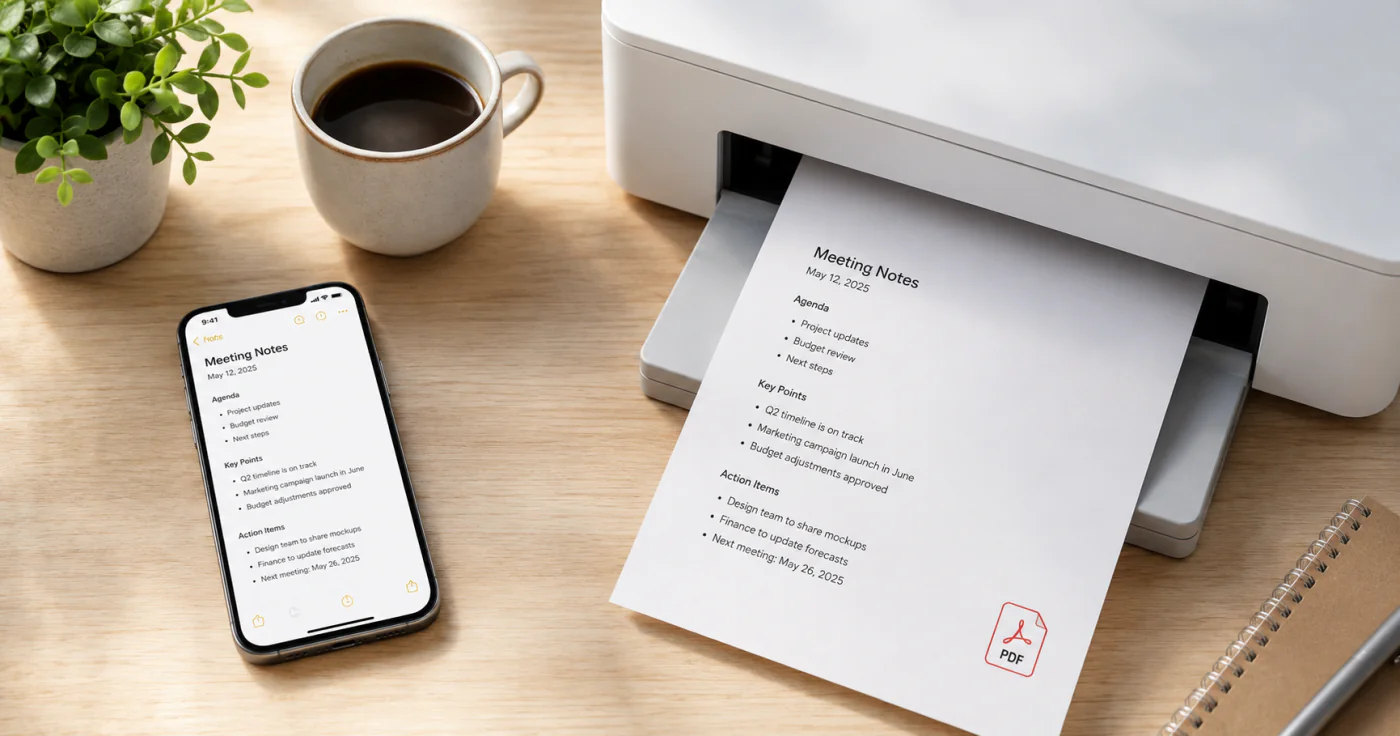
Backing up and syncing notes are two different jobs. Syncing keeps the same note available on all your devices. Backing up creates a separate copy you can restore if something goes wrong. If you only sync, a deletion or corruption can copy itself everywhere. A good setup does both.
Sync vs Backup: Know the Difference
| Sync | Backup | |
|---|---|---|
| What it does | Keeps notes identical across devices | Saves a recoverable copy of your notes |
| When it helps | Access notes from phone, tablet, or computer | Recover from accidental deletion, corruption, or lost device |
| Risk | A mistake on one device can spread to all | Outdated backup may miss recent changes |
| Best practice | Use it for daily access | Use it for disaster recovery[2] |
Sync is convenience. Backup is insurance. You need both.
How to Sync Notes Across Devices
Most modern notes apps sync through a cloud account. The general steps are:
- Sign in with the same account on every device. This is the most common reason notes fail to sync.
- Make sure cloud sync is turned on in the app's settings.
- Connect to stable Wi-Fi for the first sync or after adding large attachments.
- Check the sync status. Many apps show a "last synced" time or a spinning indicator.
- Open the note once on the new device. Some apps only fetch a note when you view it.
In a Notes App
EasyNotes syncs your notes to the cloud when you're signed in. That means a note you add on your phone shows up on your tablet or computer as long as you use the same account. Check that you're signed in, that the app has internet access, and that background data is allowed. A pull-to-refresh or reopening the app usually forces a manual sync if something looks stale.
How to Backup Your Notes
Sync protects you from device loss, but not from your own mistakes. For real backup, use one or more of these methods:
- Export as PDF or text. Most notes apps let you export individual notes or notebooks. Store the files in a cloud drive or on an external drive.
- Use your platform's backup. On iPhone, iCloud Backup can include app data. On Android, Google Backup may cover app data depending on the app.
- Follow the 3-2-1 rule. Keep at least 3 copies of important data, on 2 different types of storage, with 1 copy off-site[2].
- Periodic manual export. Once a month, export your most important notes to a separate location.
Why Your Notes Might Not Be Syncing
If a note appears on one device but not another, work through this list before assuming data is lost:
- Check the account. Are both devices signed in to the same account?
- Check the network. Weak or restricted Wi-Fi can block sync.
- Check sync settings. Make sure cloud sync is enabled in the app.
- Check storage space. If your cloud account is full, new notes may stop syncing.
- Check for a stuck file. A very large attachment can sometimes block the sync queue. Try removing it or syncing on Wi-Fi.
- Restart the app. A full close and reopen can clear a stale session.
- Update the app. Older versions can have sync bugs that are fixed in updates[3].
If a note is missing, check the app's "Recently Deleted" or trash folder before doing anything drastic. Many apps keep deleted notes for 30 days[1].
FAQ
If you use Apple Notes and have iCloud Notes enabled, your notes sync automatically across Apple devices. For a full device snapshot, including app data, enable iCloud Backup in Settings[1].
There's no direct sync between Apple Notes and Google Keep. The safest path is to export your notes as text or PDF from one platform, then import or copy them into the app on the other platform.
The most common causes are different accounts on each device, a weak or restricted network, disabled sync settings, full cloud storage, or an app that needs updating. Check each before reinstalling[3].
No. Syncing keeps the same data on multiple devices. If you delete a note on one device, sync can delete it everywhere. A backup is a separate copy you can restore from, ideally stored in a different place[2].
It depends on the app. Some offer bulk export to PDF, Markdown, or text. If bulk export isn't available, export your most important notes one by one, or sync to a desktop version of the app that supports multi-select export.
Conclusion
Sync your notes for daily access, back them up for peace of mind, and troubleshoot sync issues by checking the account, network, and settings first. A few minutes of setup now saves hours of panic later.
References
- Apple Support. "Keep your notes up to date with iCloud"
- Backblaze. "What Is the 3-2-1 Backup Rule?"
- Microsoft Support. "Fix issues when you can't sync OneNote"