Taking notes with Apple Pencil works best when you give each note a simple job: capture the main idea, show the supporting detail, and leave a clear cue for review. On supported iPad models, Apple Notes lets you combine handwriting, typed text, checklists, images, and sketches in the same note.[1]
Start With a Simple Note Structure
Do not begin every class or meeting with a blank canvas and hope the page stays readable. Give each new note the same small structure:
| Section | What to add |
|---|---|
| Title | Topic, class, project, or meeting name |
| Main notes | Short ideas, explanations, formulas, or decisions |
| Action items | Questions to answer, tasks to do, or items to review |
| Summary | Two or three lines written after the session |
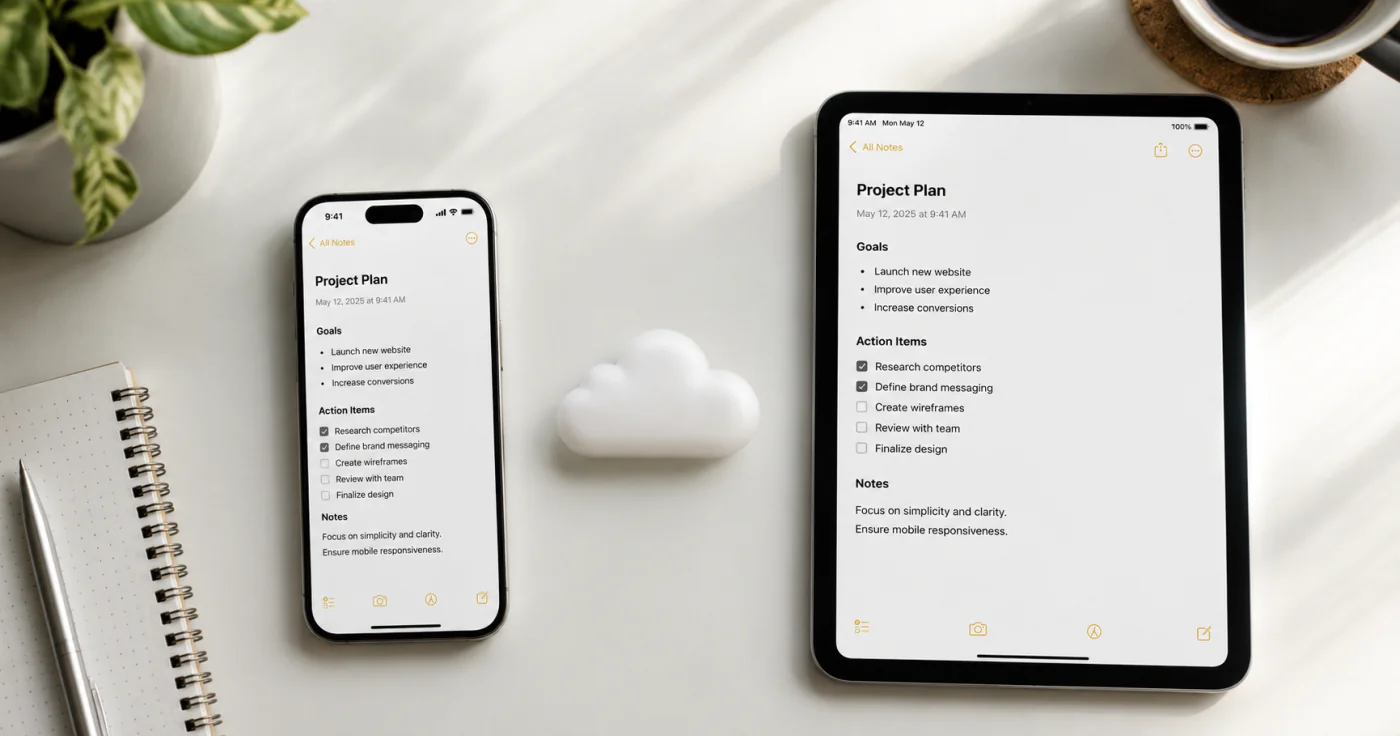
Apple Notes can format headings, checklists, tables, and dividers, so you can keep this structure without drawing a new layout every time.[1]
A Practical Apple Pencil Note-Taking Workflow
Choose the Right Starting Point
| Situation | Fastest place to start | What to do next |
|---|---|---|
| A class or meeting is starting | A new note in Notes | Add the topic, date, and a short action-items area. |
| An idea appears while you are using another app | Quick Note | Capture the idea, link, or image, then move it into the right folder later. |
| You are reading a handout or PDF | The document's Markup tools | Annotate the source, then add a short summary to a separate note. |
This keeps quick capture from becoming your long-term filing system. Apple says Quick Notes can be started from any app or screen, including with the bottom-right Apple Pencil gesture on supported iPads.[2]
1. Check Your iPad and Apple Pencil Setup
First, make sure your Apple Pencil is compatible with your iPad and paired correctly. Then open the Notes app and create a fresh note for the class, project, or meeting.
If you need to capture something quickly, Apple says you can start a Quick Note with Apple Pencil from anywhere on supported iPads, including from the Lock Screen.[2] That is useful for a fast idea, but move important notes into the right folder later so they do not get lost.
2. Write the Topic Before the Details
Put the date and topic at the top of the page before you start writing. If the session changes direction, add a new heading rather than squeezing unrelated notes into the same block.
This one habit makes later search and review easier. It also gives you a natural place to add a short summary when the session ends.
3. Use Short Lines Instead of Full Transcripts
With Apple Pencil, it is tempting to write every sentence you hear. Instead, capture:
- definitions and key claims;
- examples that make the idea easier to remember;
- diagrams, arrows, or equations that would be awkward to type;
- a question mark beside anything you need to revisit.
Leave a little white space between ideas. A note that looks slightly unfinished during the session is often easier to use later than a dense page with no visual breaks.
4. Mix Handwriting With Typed Anchors
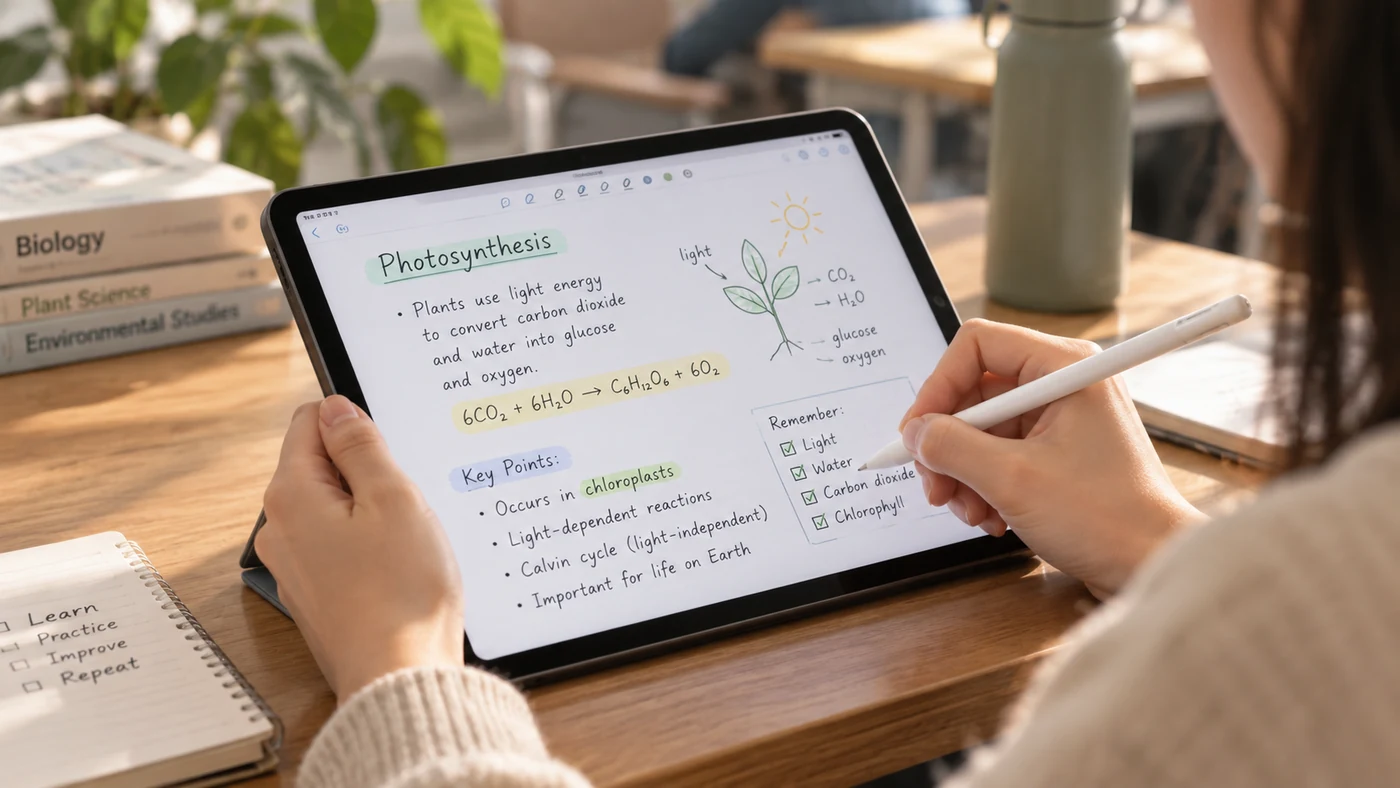
Handwriting is useful for diagrams and fast thinking. Typed text is often better for a final summary, a project name, or a term you will need to find again. On iPad, Notes supports handwriting and drawing with Apple Pencil or a finger, along with Markup tools for changing pens, colors, and other details.[3]
Use the two formats together rather than treating them as competitors. For example, handwrite a lecture diagram, then type a three-line summary below it before you leave class.
If you are deciding when handwriting is worth the extra effort, compare the trade-offs in our guide to handwritten and digital notes.
5. Turn Raw Notes Into Reviewable Notes
Within a day, spend five minutes improving the note:
- Add a clear heading if you did not add one at the start.
- Circle or highlight the two or three ideas that matter most.
- Move action items into a checklist.
- Write a short summary in your own words.
- File the note where you will look for it again.
This is the point where notes become useful knowledge instead of a record of what happened.
Adapt the Same Workflow for Class, Work, and Daily Life
| Use case | Capture during the moment | Add during review |
|---|---|---|
| Class | Key terms, diagrams, examples, and questions | A three-line summary and the next revision task |
| Work | Decisions, owners, deadlines, and open risks | A clean action list and links to supporting material |
| Daily life | The item, idea, or detail you might forget | A short title and the folder where you expect to find it |
The structure is deliberately plain. A system you can keep using is more valuable than a decorative layout you abandon after a week.
Organize iPad Notes So You Can Find Them Later
Use folders for broad areas such as School, Work, and Personal, then keep naming consistent inside each folder. Apple’s Notes app also supports folders and subfolders on iPad, which helps separate ongoing projects from one-off notes.[4]
For students, a simple setup might be:
| Folder | Example notes |
|---|---|
| Classes | Lecture notes, reading notes, formulas |
| Assignments | Briefs, research questions, due dates |
| Review | Weekly summaries and exam topics |
You do not need a complicated system on day one. Start with a small number of folders, then add detail only when you repeatedly struggle to find something.
For more ways to turn a note structure into a learning habit, see our guide to note-taking methods. Students can also use our practical advice on note-taking for students.
Common Apple Pencil Note-Taking Mistakes
Making Every Page Look the Same
Decorative pages can be enjoyable, but a lecture note, a project plan, and a meeting record do not need the same layout. Let the purpose determine the structure.
Waiting Too Long to Review
Handwritten notes are easiest to understand while the context is still fresh. A quick same-day review is more valuable than an elaborate rewrite weeks later.
Treating the iPad Like Paper Only
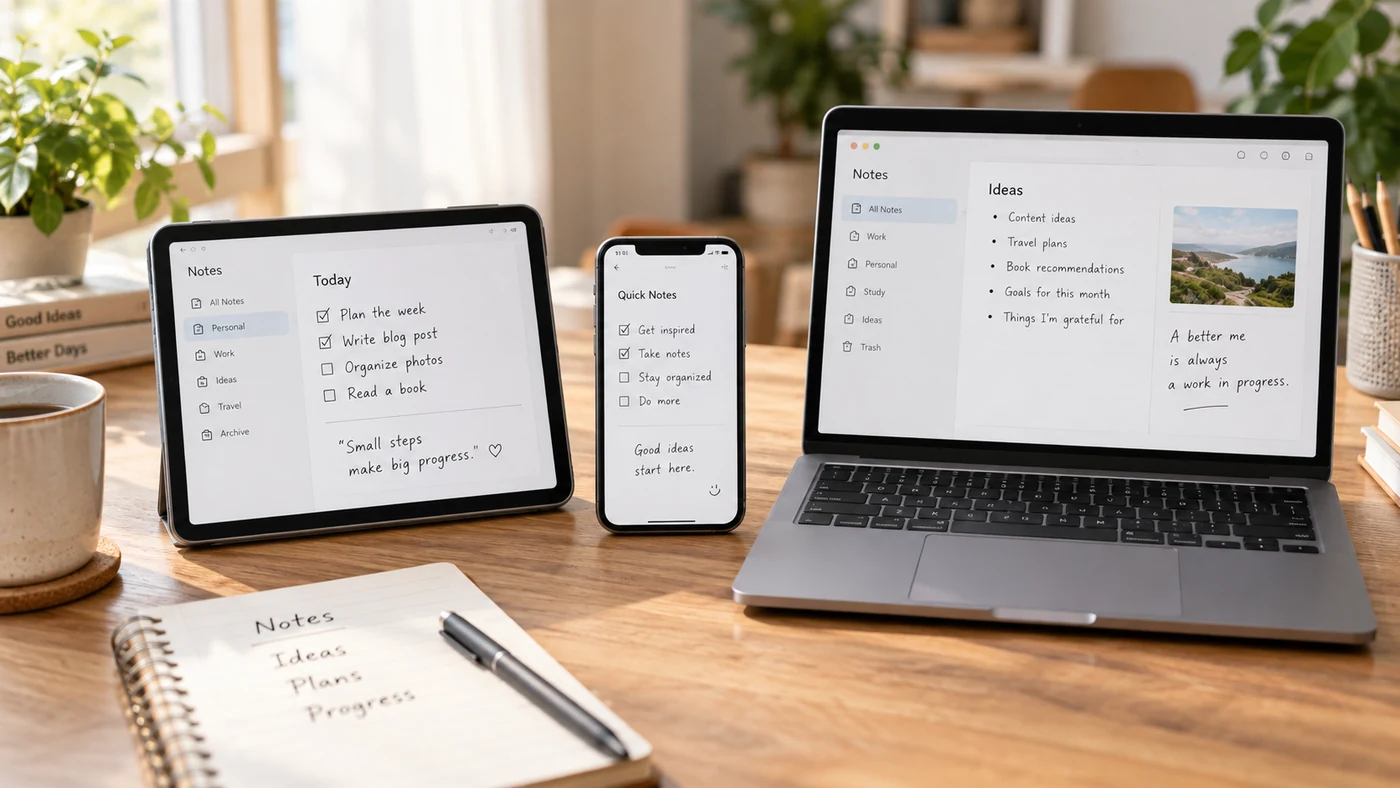
Apple Pencil is excellent for handwriting, but an iPad also lets you add checklists, headings, images, and searchable typed summaries. Use those tools when they make later review faster.
Frequently Asked Questions
Can You Take Notes on an iPad With an Apple Pencil?
Yes. On supported iPad models, Apple says you can write a note with Apple Pencil from anywhere on iPad, including from the Lock Screen.[2] For longer notes, open Notes first so you can add a useful title and structure while you write.
How Do You Activate Apple Pencil in Notes?
In a note, start writing with Apple Pencil. To use Scribble for typed-text entry, show the tool palette, choose the Handwriting tool, then write; Apple says Scribble converts handwriting to typed text in supported languages.[5]
Where Can You Take Notes on iPad?
For a normal note, start in Notes. For a fast capture while you are in another app or viewing a screen, use Quick Note. For a source document, use Markup to annotate it and then write a separate summary you can find later.[2][3]
How Do You Turn Apple Pencil Writing Into Text in Notes?
Use Scribble in a supported language: select the Scribble tool in the handwriting tools, then write in the text area. Apple notes that availability depends on language and device support, so check the feature availability for your setup if the option is missing.[3][5]
Conclusion
Taking better notes with Apple Pencil is less about perfect handwriting and more about a repeatable workflow: capture the point, add structure, review quickly, and file the note where you can find it.
References
- Apple Support. "Create and Format Notes on iPad"
- Apple Support. "Quickly Write Notes With Apple Pencil on iPad"
- Apple Support. "Draw and Handwrite With Markup on iPad"
- Apple Support. "Organize Your Notes in Folders on iPad"
- Apple Support. "Enter Text With Scribble on iPad"