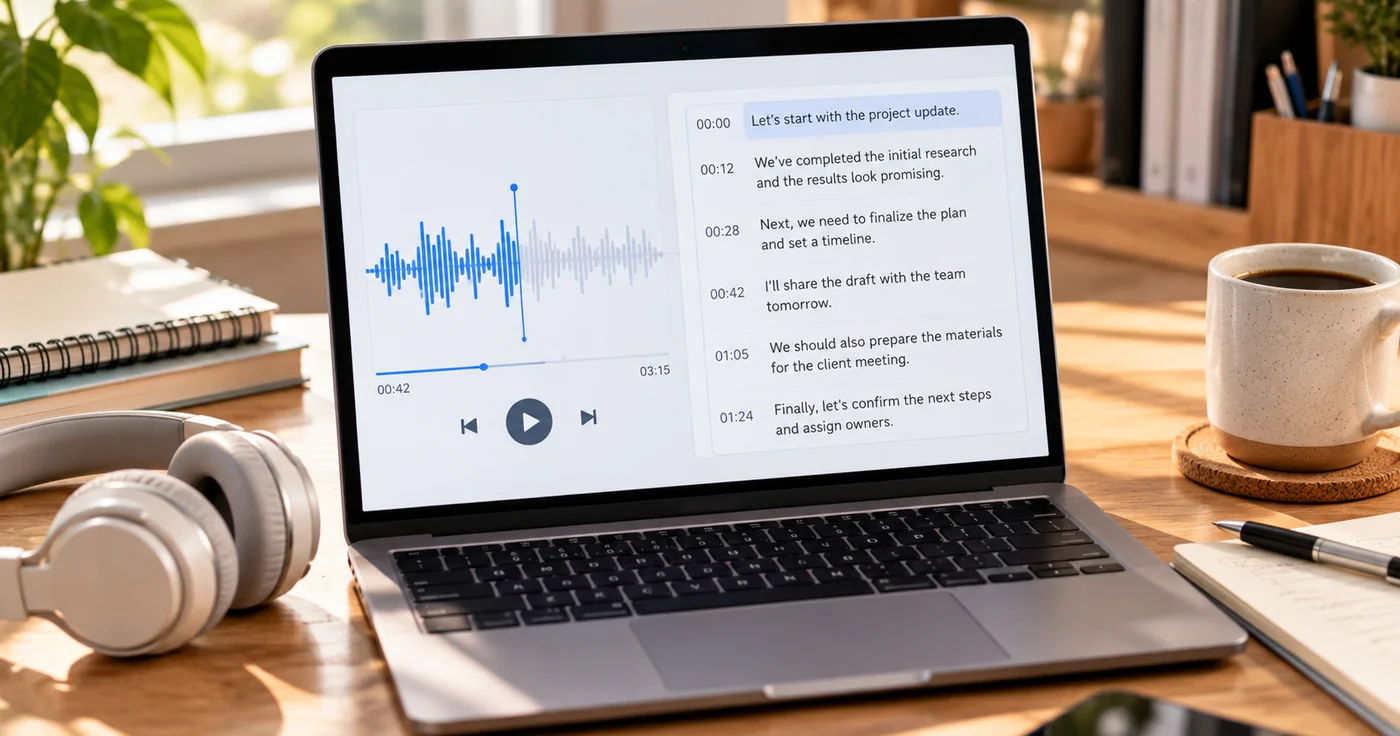
To get an audio transcript from a voice memo, first check whether your phone’s recorder can transcribe an existing recording. On supported iPhones, Voice Memos can display and copy a transcript; on Pixel phones, Recorder can show or re-transcribe a saved recording. Then verify names, numbers, and decisions against the audio and turn the corrected text into a short, searchable note.
Check the Built-In Transcription Option First
iPhone Voice Memos
Open the recording in Voice Memos, tap More, then choose View Transcript to select and copy part of the text, or Copy Transcript to copy the full transcript into another document. Apple says audio transcription is available on iPhone 12 or later in supported languages and is not available in every country or region, so the option may not appear on every device or recording.[1]
Google Pixel Recorder
In Recorder, open the saved recording and switch to Transcript to read the text. If the transcript is missing or you need another language, open the recording’s More menu, choose Transcribe again, and select a language. Google notes that re-transcription may process audio files on its servers; check the language and privacy implications before using it for sensitive recordings.[2]
Pixel Recorder can share a transcript as a text file or send it to Google Docs. Recordings stay on the device unless you choose actions such as backup, sharing, or copying them to another app.[3]
If Your Phone Does Not Offer a Transcript
Do not assume every Android recorder or every voice-memo app includes transcription. Check the recorder’s own help page for support for existing audio files, the recording language, export options, and where audio is processed. If you use a third-party service, review its retention and sharing terms before uploading a recording—especially if it contains other people’s voices or confidential details.
Turn the Transcript Into a Useful Note
A raw transcript is searchable, but it is rarely the clearest record. Use this short editing pass:
- Label the source. Add the recording date, topic, and context so the note makes sense later.
- Correct high-impact details. Replay the relevant audio to verify names, dates, amounts, technical terms, and negations such as “do” versus “do not.” Automated text is a draft to check, not a substitute for listening when accuracy matters.
- Write the point in your own words. Reduce the transcript to the main idea and the few supporting details you will need again.
- Separate decisions from actions. Record what was decided, what remains open, who will act, and any due date only when the recording makes those details clear.
- Keep a route back to the audio. Preserve the original recording or note its title and location when you may need to verify context or wording later.
A Copyable Voice-Memo Note Format
Recording:
Date and context:

Main point:
-

Key details to verify:
-

Decision or open question:
-

Next action | Owner | Due date:
-
This is an editorial format you can adapt in any note-taking tool; it is not an EasyNotes template. For ways to capture audio alongside other note types, see How to Take Voice and Photo Notes. Once the text is checked, organize notes by topic, project, or the next action you need to find.
Handle Recordings With Care
Before recording or uploading a conversation, check the rules that apply in your setting and make sure participants have any notice or consent required for your situation. Avoid uploading sensitive audio to a service until you understand its processing, retention, and sharing settings. For important decisions, keep the source audio available and verify the transcript rather than relying on an unreviewed automated version.
Conclusion
Start with the transcription option built into the phone that made the memo, then confirm that the device, language, and region are supported. Review the text against the audio and turn only the useful, verified points into a concise note with clear decisions and next actions.
References
- Apple. "View a Voice Memos transcription on iPhone"
- Google. "Create, edit & manage transcriptions"
- Google. "Save & share recordings & transcripts"