Exporting your notes to PDF keeps the layout intact and makes them easy to print or send. Most apps and phones use the same share-to-PDF flow; here's how to do it and what to check before you hit print.
On your phone (iOS and Android)
- Open the note and tap Share or More (⋯).
- Choose Export as PDF from the menu [1][2].
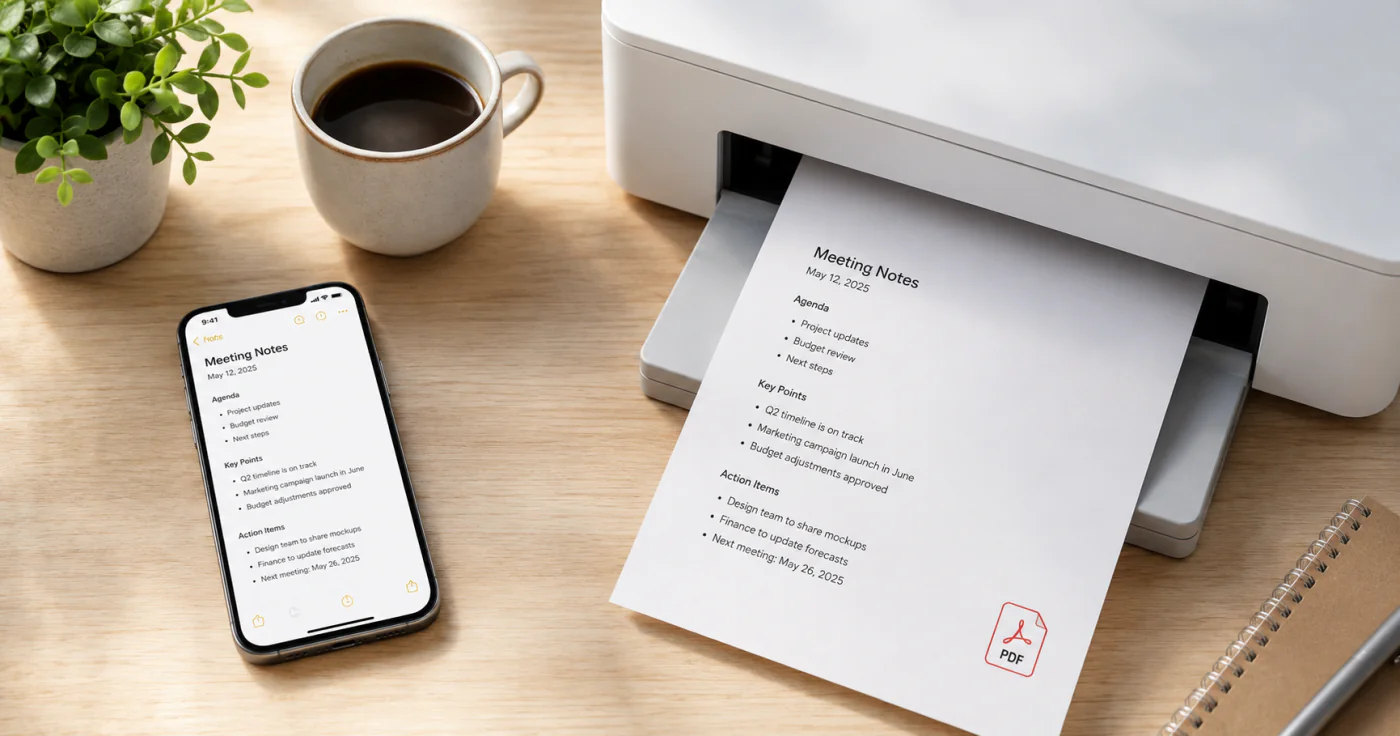
- In the preview, use the share sheet to Save to Files or send it to a printer [1].
This flow works in most note apps because it rides on the phone's built-in share and print system.
On desktop
- Open the note and press Cmd/Ctrl + P.
- In the print dialog, pick Save as PDF (macOS) or Microsoft Print to PDF (Windows).
- Adjust the page range if you only need part of a longer note.
Apps such as EasyNotes let you export a note to PDF or share a read-only copy, then send it to any printer from your phone.
What to check before printing
- Page range — skip blank pages from long notes so you don't waste paper.
- Margins — keep them wide enough that text isn't cut off at the edges.
- Orientation — pick landscape for wide tables, portrait for normal text.
- Formatting — confirm bold, bullets, and checklists survived the conversion.
- Page breaks — for a long note, set breaks at headings so a section doesn't split awkwardly across two pages.
PDF preserves your formatting, so the printed page matches the note on screen [1].
Print-friendly habits for long notes
If a note runs long, tidy it before exporting: collapse or remove rough drafts, use clear headings so the print has structure, and consider exporting one section at a time if the whole thing would run to many pages [2]. A clean source note makes a clean PDF — you'll spend less time fixing margins later.
Notes with images, checklists, or handwriting
If your note includes photos, drawings, or checkboxes, preview the PDF before printing — most apps render images and checked boxes, but their size and spacing vary [1]. If a photo comes out too small or a checklist looks cramped, widen the margins or switch to landscape so nothing clips at the edge. For handwritten or scanned notes, a higher-contrast source gives a cleaner print, and a black-and-white preview is often easier to read on paper than full color.
FAQ
Many apps let you select several notes and export them as a single PDF, then print that file [2]. Check whether your app supports multi-select before you export.
Yes — PDF keeps bold text, checklists, and bullets, so the printout matches your note [1]. Always preview once to confirm page breaks landed where you want.
A PDF is read-only by default; share it as a viewable file rather than a live editable note [1]. If they need to change it, send the original note instead.
Conclusion
Turning notes into PDF takes one share tap. Use your phone's export-to-PDF option or the desktop print-to-PDF dialog, check the page range, margins, and orientation, and you'll have a clean, printable copy in seconds.
References
- Apple Support. "Export or print notes on iPhone"
- Google Chrome Help. "Print from Chrome on Android (save as PDF)"