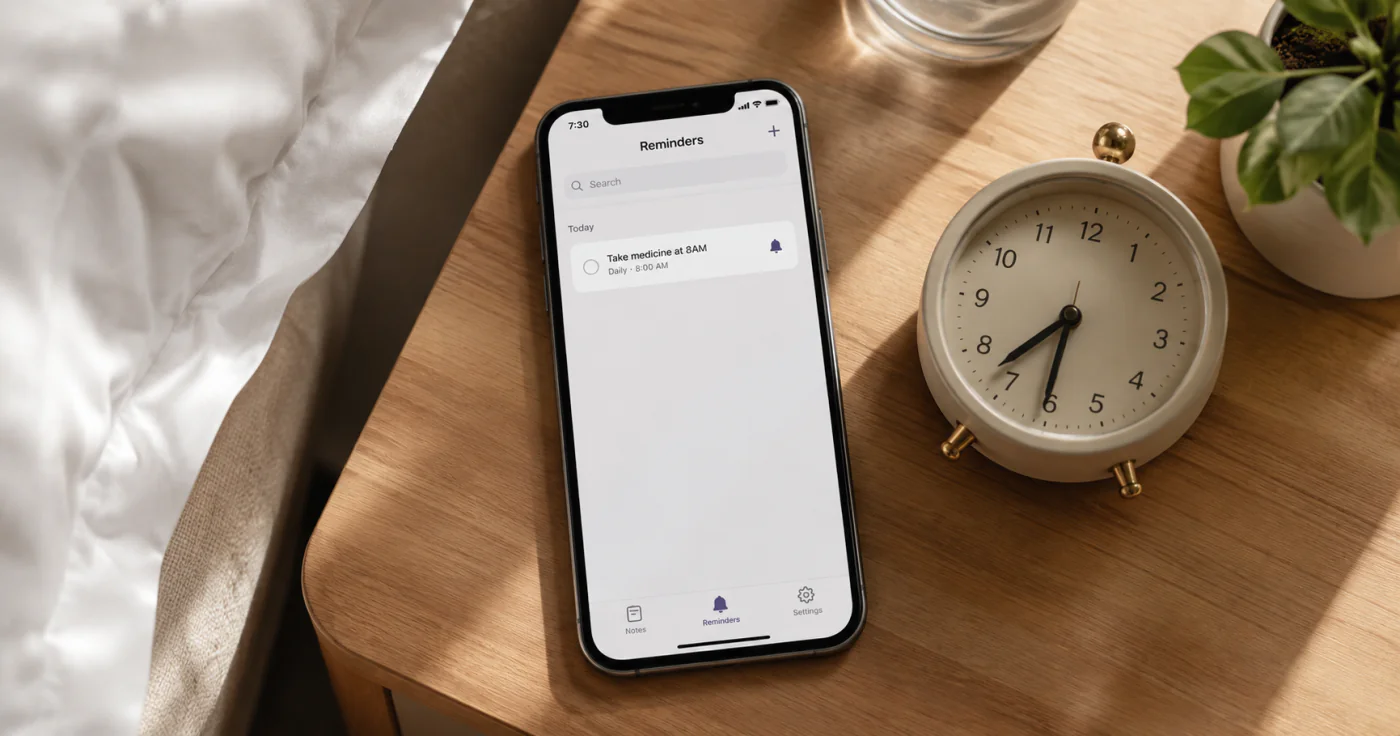
A daily reminder is a timed nudge tied to a specific task or note. Setting one takes a few taps: open the note, choose a time, set the repeat to "Daily," and save. The real value comes from tying the reminder to the exact note that holds the details, so when it fires you already have the context in front of you.
When a Daily Reminder Makes Sense
Use a daily reminder for anything that should repeat but still needs your attention:
- A morning medication or supplement log
- A daily stand-up prep note
- A recurring check-in or habit tracker
- A "review today's priorities" prompt
The key difference from a one-time alarm is that the reminder stays attached to the note. You see the alert and the context at the same time, which lowers the chance you'll dismiss it without acting.
How to Set a Daily Reminder in a Notes App
The exact labels vary by app, but the flow is consistent. Below is the general path, followed by how it looks in one notes app.
General Steps
- Open the note you want to remind yourself about. A reminder works best when it points to the note that contains the task, list, or reference.
- Tap the reminder or bell icon. If you don't see one, look in the note's action menu (usually three dots).
- Pick a time. Choose the moment you want the alert to fire. Morning reminders work well for habits; mid-day reminders work for tasks you tend to delay.
- Set the repeat schedule. Select Daily if you want it to fire every day. Other common options are None, Weekly, Monthly, or Yearly.
- Save. The reminder will now fire at the set time and repeat on the schedule you chose.
In a Notes App
EasyNotes lets you add a reminder directly to a note. Tap the reminder icon inside the note, choose a time, then pick how often it should repeat: None, Daily, Weekly, Monthly, or Yearly. Save it, and you'll get an in-app push notification at the chosen time. You can also check the note from the app's widget without opening the full app. The reminder stays with the note, so the task and the nudge are never in different places[1].
Choosing the Right Repeat Schedule
| Schedule | Best For |
|---|---|
| None | One-off deadlines or single events |
| Daily | Habits, medications, morning/evening reviews |
| Weekly | Weekly planning, recurring meetings, report deadlines |
| Monthly | Bill payments, subscription reviews, monthly reports |
| Yearly | Birthdays, anniversaries, annual renewals |
If the task only matters on weekdays, choose Daily and manually skip weekends, or set two separate weekly reminders (Mon–Fri). The screenshot shows a simple daily repeat, which covers the most common use case.
How to Make Reminders Actually Stick
Setting the reminder is easy; getting yourself to act on it is the hard part. Research on implementation intentions shows that people are more likely to follow through when the reminder includes a specific "if-then" plan — for example, "If the 8 a.m. reminder fires, then I take my medication before coffee"[1].
A few practical rules:
- Be specific. "Read" is weak. "Read 10 pages of the report" is strong.
- Match the time to the energy. Don't set a creative-writing reminder for 11 p.m. if you're drained by then.
- Keep the count low. Too many daily reminders train you to swipe them away. Start with one or two that matter.
- Review weekly. If you're ignoring a reminder, change the time, the wording, or delete it. A ignored reminder is just noise.
FAQ
Open your notes app, open the note you want to link to the reminder, tap the reminder or bell icon, set the time, choose "Daily" under repeat, and save. You'll get a push notification at that time each day.
Most note apps with reminders offer Daily, Weekly, Monthly, or Yearly repeats. For weekdays only, set a Weekly reminder and select Monday through Friday, or set a Daily reminder and manually skip weekends.
Check three things: notifications are enabled for the app in your phone's settings, the app is allowed to run in the background, and Do Not Disturb or battery-saver modes aren't blocking alerts.
Location-based reminders are available in some native apps like Apple Reminders or Google Assistant, but they are not part of this notes app's reminder feature. If you need a geo-triggered nudge, use your phone's built-in reminders app.
If your notes app syncs across devices and the reminder is tied to the note, the reminder will generally follow the note to any signed-in device. Check that you're signed in with the same account on each device.
Conclusion
Daily reminders work when they are specific, tied to the right note, and reviewed often. Set one reminder for a habit that actually matters, link it to the note that holds the details, and give it a time that matches your day. One reliable reminder beats ten ignored ones.
References
- Gollwitzer, P. M. (1999). "Implementation intentions: Strong effects of simple plans" American Psychologist, 54(7), 493–503.