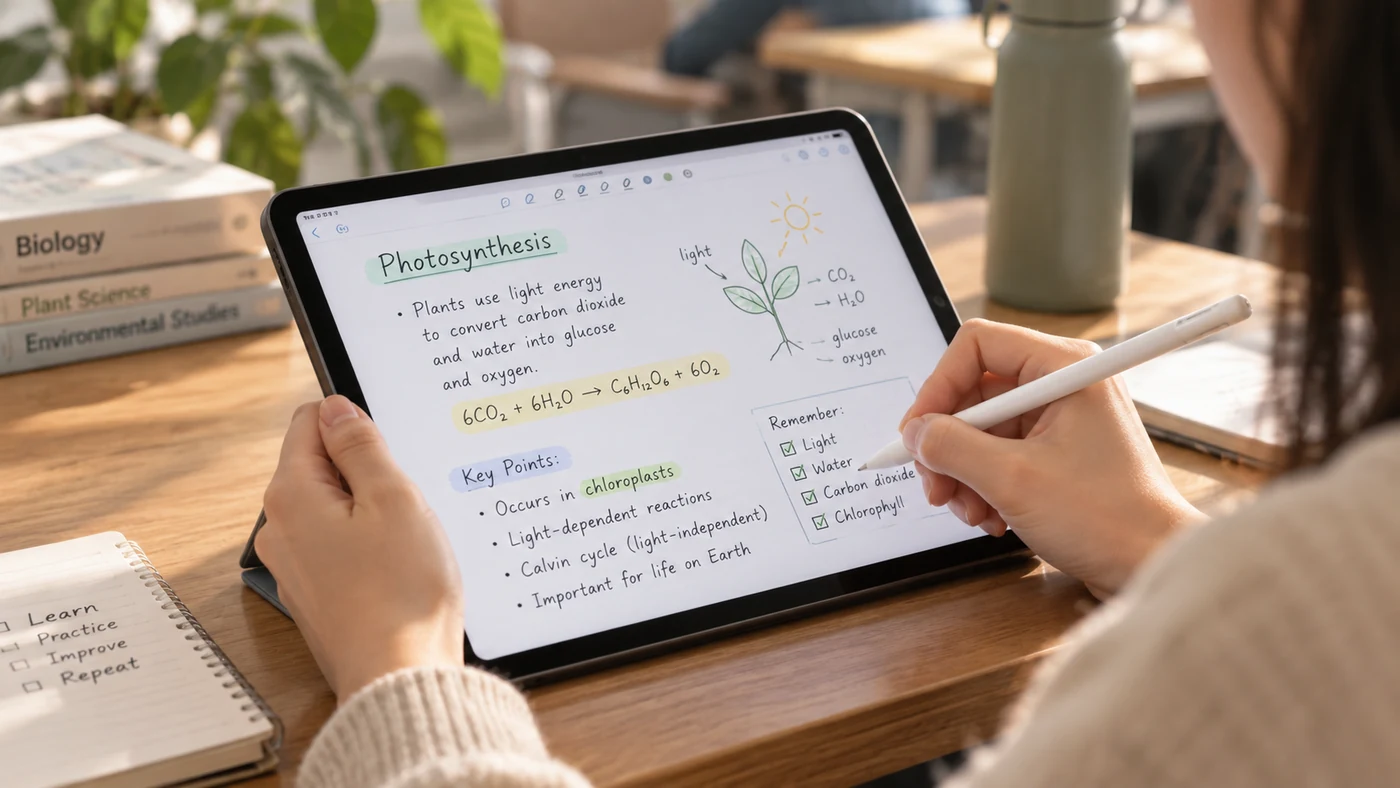
The best note-taking app for iPad depends on what you need to do after you put pencil to glass. For handwritten class notes and PDF markup, prioritize pen tools and document handling. For quick everyday capture, prioritize search, sync, and low-friction organization. These five apps fit different workflows.
How to Choose an iPad Note-Taking App
Before downloading several apps, decide which of these jobs matters most:
| If you mainly need to… | Look for… |
|---|---|
| Handwrite lecture or meeting notes | Comfortable pen tools, lasso selection, and handwriting search |
| Read and mark up PDFs | Reliable import, highlighting, and export options |
| Record lectures or interviews | Audio recording that stays connected to your written notes |
| Turn handwriting into text | Strong handwriting recognition and conversion |
| Keep notes across devices | Sync support and an organization system you will actually use |
A good iPad setup is less about finding the app with the longest feature list and more about choosing one that removes friction from your own routine.
1. Apple Notes: Best Free Starting Point
Apple Notes is the sensible first choice if you already use an iPad, iPhone, or Mac and want to begin without adding another subscription. On supported iPads, you can handwrite or draw with Apple Pencil, use Markup tools, and add PDFs to notes for annotation.[1][2]
It works well for quick class notes, grocery lists, sketches, scanned documents, and everyday reminders. Its biggest advantage is convenience: it is already part of the Apple ecosystem.
Choose Apple Notes if: you want a free, built-in place for quick handwritten and typed notes.
Consider another app if: you need a more notebook-like system for large sets of lecture notes or detailed PDF study workflows.
2. Goodnotes: Best for Digital Notebooks and PDF Study
Goodnotes is a strong fit for people who want their iPad to feel like a set of organized paper notebooks. Its official feature materials highlight handwriting and typed-text search, while its PDF tools support annotation and document review.[3][4]
That combination makes it useful for students annotating lecture slides, professionals reviewing documents, and anyone who wants to keep subject-based notebooks in one place.
Choose Goodnotes if: handwriting and PDF annotation are central to your routine.
Consider another app if: your priority is fast, lightweight capture rather than building a detailed digital-notebook system.
For broader selection criteria beyond iPad-specific use, see our guide to choosing a note-taking app.
3. Notability: Best for Notes That Need Audio Context
Notability is worth considering when your notes need to stay connected to what was said in the room. Its audio feature lets you tap within a note during playback to jump to the corresponding point in a recording.[5]
That can be especially helpful for lectures, interviews, training sessions, or meetings where you need to write quickly now and revisit the explanation later.
Choose Notability if: you regularly take notes while listening to lectures, meetings, or interviews.
Consider another app if: audio-linked notes are not part of your workflow and you prefer a simpler setup.
4. Nebo: Best for Handwriting-to-Text Workflows
Nebo is a useful option for people who want handwritten notes to become editable text. Its official materials emphasize handwriting recognition, PDF import and export, and the ability to organize or annotate PDF pages.[6]
This makes Nebo appealing when your notes begin with Apple Pencil but eventually need to move into a report, study outline, or shared document.
Choose Nebo if: converting handwriting into typed text is a major part of your process.
Consider another app if: you mainly want to preserve handwritten pages exactly as written.
5. Microsoft OneNote: Best for Existing Microsoft Users
OneNote can be a practical choice if your work or school already runs on Microsoft tools. On iPad, it supports handwriting, drawing, highlighting, and sketching with a finger or compatible stylus.[7]
One important limitation is that Microsoft’s current support guidance says OneNote for iPad does not support converting handwriting to text.[7] If that feature is essential, compare it carefully with an app built around handwriting recognition.
Choose OneNote if: your notes need to live alongside an existing Microsoft-based workflow.
Consider another app if: handwriting conversion on the iPad is a must-have.
Which iPad Note-Taking App Is Best for You?
Use this quick decision guide:
- Choose Apple Notes for free, everyday notes inside the Apple ecosystem.
- Choose Goodnotes for notebook-style handwriting and PDF-heavy study.
- Choose Notability when recording and revisiting spoken context matters.
- Choose Nebo when you want to turn handwriting into editable text.
- Choose OneNote when Microsoft tools are already central to your work or school.
Students may also benefit from a system that separates lecture notes, assignments, and revision material. Our guide to note-taking for students covers practical ways to build that habit.
Frequently Asked Questions
What Is the Best Note Taker App for iPad?
There is no universal best choice. Choose Apple Notes for a free built-in start, Goodnotes for digital notebooks and PDF-heavy study, Notability when recorded audio context matters, Nebo for handwriting-to-text work, or OneNote when Microsoft tools are already central to your workflow.[1][3][5][6][7]
Is GoodNotes Free for iPad?
Goodnotes offers a free plan, but its official documentation lists limits on editable notebooks, audio recording, imported-file size, and exports. Test those limits with your own class or work material before deciding that the free plan is enough.[8]
Is an iPad a Good Note Taker?
An iPad is a strong fit if you want to combine typed notes with handwriting, diagrams, PDF annotation, and search. It is less compelling if you only need plain text and do not expect to use a stylus, documents, or Apple-device sync. The useful question is whether it removes friction from your own capture-and-review habit.
Is GoodNotes a Monthly Fee?
Goodnotes offers different plan types and optional add-ons. Its support documentation says plan availability and prices can vary by platform and region, so check the current App Store or Goodnotes plan page before paying.[8]
Conclusion
The best iPad note-taking app is the one that fits how you capture, organize, and revisit information. Start with your most frequent task—handwriting, PDFs, audio, conversion, or Microsoft-based work—and choose the app that makes that task feel simpler.
References
- Apple Support. "Add Drawings and Handwriting in Notes on iPad"
- Apple Support. "Work with PDFs in Notes on iPad"
- Goodnotes. "Features"
- Goodnotes. "PDF Annotation App"
- Notability Support. "Recording and Playing Audio"
- Nebo. "Versions"
- Microsoft Support. "Handwrite, Draw, and Sketch in OneNote for iPad or iPhone"
- Goodnotes Support. "Compare Goodnotes Plans"