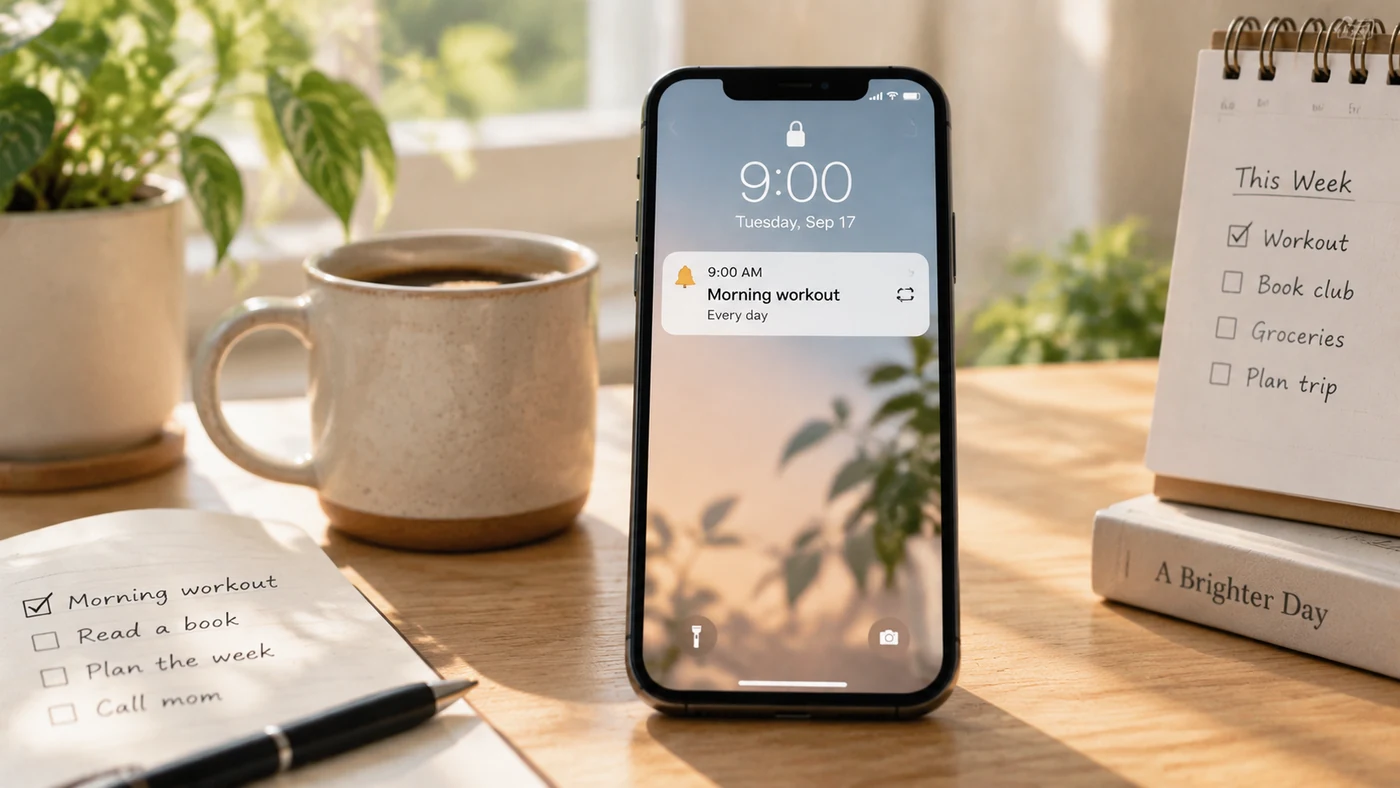
The best reminder app depends on what you need to remember and where you need to see it. A one-time errand, a repeating daily habit, a task list, and a location-based alert each require different behavior. Start by deciding whether you need a notification, a recurring rule, a shared task list, a calendar connection, or an Apple- or Microsoft-centered workflow. Then test the few candidates that match your devices and routine. A reminder only helps when its timing, permission settings, and follow-up action work in real life.
Choose the reminder type before the app
| Your need | Verify before choosing | Not every app needs this |
|---|---|---|
| One-time task | Notification timing, snooze, and rescheduling | Complex repeat rules |
| Repeating routine | Daily, weekly, monthly, or custom recurrence | Location access |
| Place-based prompt | Location-permission behavior and platform support | Calendar views |
| iPhone-centered routine | Apple-device workflow, Widgets, and Siri options | Microsoft 365 connection |
| Windows or Microsoft work | Microsoft account and Microsoft 365 workflow | Apple-only features |
| Tasks plus planning | Calendar behavior and task organization | A minimal reminder-only interface |
Do not assume a feature is available on every plan or device. Confirm the current official details before depending on a reminder for medication, travel, bills, or another time-sensitive responsibility.
Choose Apple Reminders for an Apple-device workflow
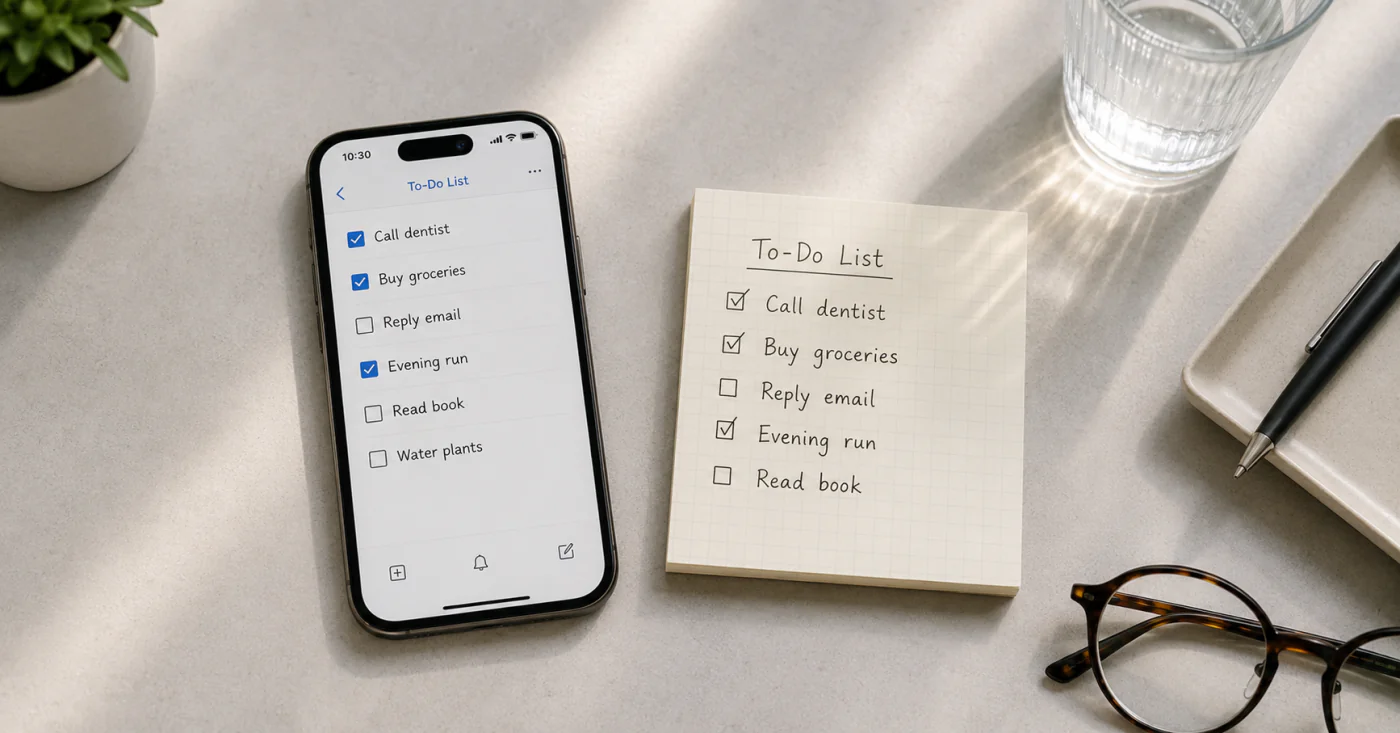
If your routine centers on Apple devices, start by checking whether the built-in Reminders workflow already covers your needs. Apple documents Reminders use on iPhone, iPad, and iPod touch, including Widget and Siri-related options. [1] This path may fit readers who want a system-level reminder experience without adding a separate task system.
It may be less suitable when your essential workflow depends on non-Apple devices or a specific external service. Test the device path you use every day rather than choosing based on one phone screen.
Compare Todoist and Apple Reminders by workflow
Todoist and Apple Reminders are not interchangeable for every reader. Consider Apple Reminders when your routine is centered on supported Apple-device controls. Consider Todoist when its documented reminder patterns match the way you phrase and repeat tasks. Todoist documents automatic, custom, repeated, and location reminders, with feature availability and platform limits that you should check before relying on them. [2]
Neither choice is automatically better. Use one real task: set a reminder, change its time, repeat it, and verify what happens on each device you use.
Check Microsoft To Do for Microsoft-centered task routines
Microsoft To Do is relevant when your reminder workflow already uses Microsoft services. Its App Store listing describes personal and shared lists, reminders, and Microsoft 365 synchronization. [3] Verify the current device support, account requirements, shared-list behavior, and notification permissions for your setup before moving your routine.
If you only need a personal list, avoid choosing a larger ecosystem solely because it has more options than you will use.
Keep daily checklist reminders tied to a next action
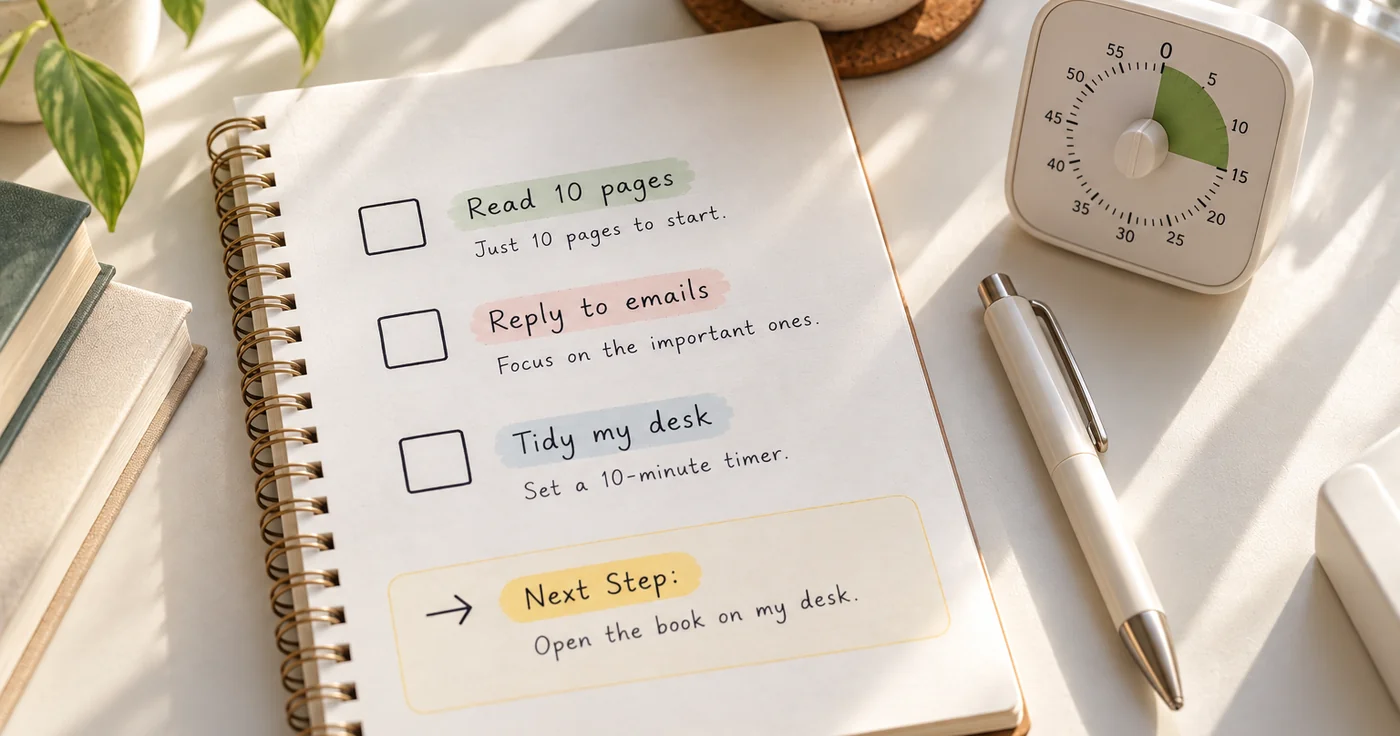
A daily checklist works when the reminder points to a clear next action, not a vague instruction to “get organized.” For example, a reminder can open a short morning checklist or a weekly review list. Daily Checklist Ideas can help you decide what that list should contain.
If the reminder needs to become a task list, see How to Make a To-Do List. If you have already chosen a tool and need to build the cadence, How to Set Daily Reminders covers the habit itself.
Check permissions, free limits, and privacy before you depend on alerts
Before using any reminder app for an important routine, confirm its current official information for notification permissions, location permissions if applicable, free-plan limits, paid reminder features, account access, and privacy terms. A notification that is disabled, delayed, or unavailable on your device cannot support the routine you intended.
Frequently Asked Questions
Which app is the best for keeping reminders?
There is no single best reminder app. Choose Apple Reminders for a supported Apple-device workflow, Microsoft To Do for a Microsoft-centered task routine, or another candidate only after its reminder type, platform support, permissions, and plan limits match your needs. Use a one-week test with a real recurring task before moving your whole routine.
What is the best Reminders app for iPhone?
Apple Reminders is a natural starting point for an iPhone-centered workflow because Apple documents its use on supported Apple devices, including Widget and Siri-related options. [1] If you need another app, compare its iPhone notification behavior and current feature limits against the routine you actually use.
Is there an app to remind you to do tasks?
Yes. Reminder and task apps can notify you about one-time or repeated tasks, but their exact behavior varies. Choose the reminder type first, then verify the app’s current device support, permissions, and plan limits.
Conclusion
Choose a reminder app based on the trigger you need: a time, a repeat rule, a place, or a task workflow. Test it with one routine that matters this week, including a reschedule and a missed notification, before moving every reminder into the app.
If you need personal note-level reminders with Daily, Weekly, Monthly, or Yearly repeats, plus checklists and a mobile Home Screen Widget, EasyNotes can be a natural fit. It is not presented as a location-reminder, calendar-integration, or shared-editing tool.