The best to-do list app is the one that supports the way you actually finish tasks. A short personal list needs fast capture and dependable reminders. A complex project may need recurring tasks, a calendar view, or clearer organization. A family may need a genuinely shared list rather than a note someone can only view. Start with the job that breaks down in your current routine, then test candidates against that job. A scenario-based choice is more useful than a single “best app” label. [1]
Choose an app by the work you need it to do
| Your main need | Look for | Be cautious about |
|---|---|---|
| A minimal personal list | Fast capture, checkboxes, reminders | Paying for project features you will not use |
| Repeating tasks | Clear recurrence rules and edit controls | Assuming every repeat rule works the same way |
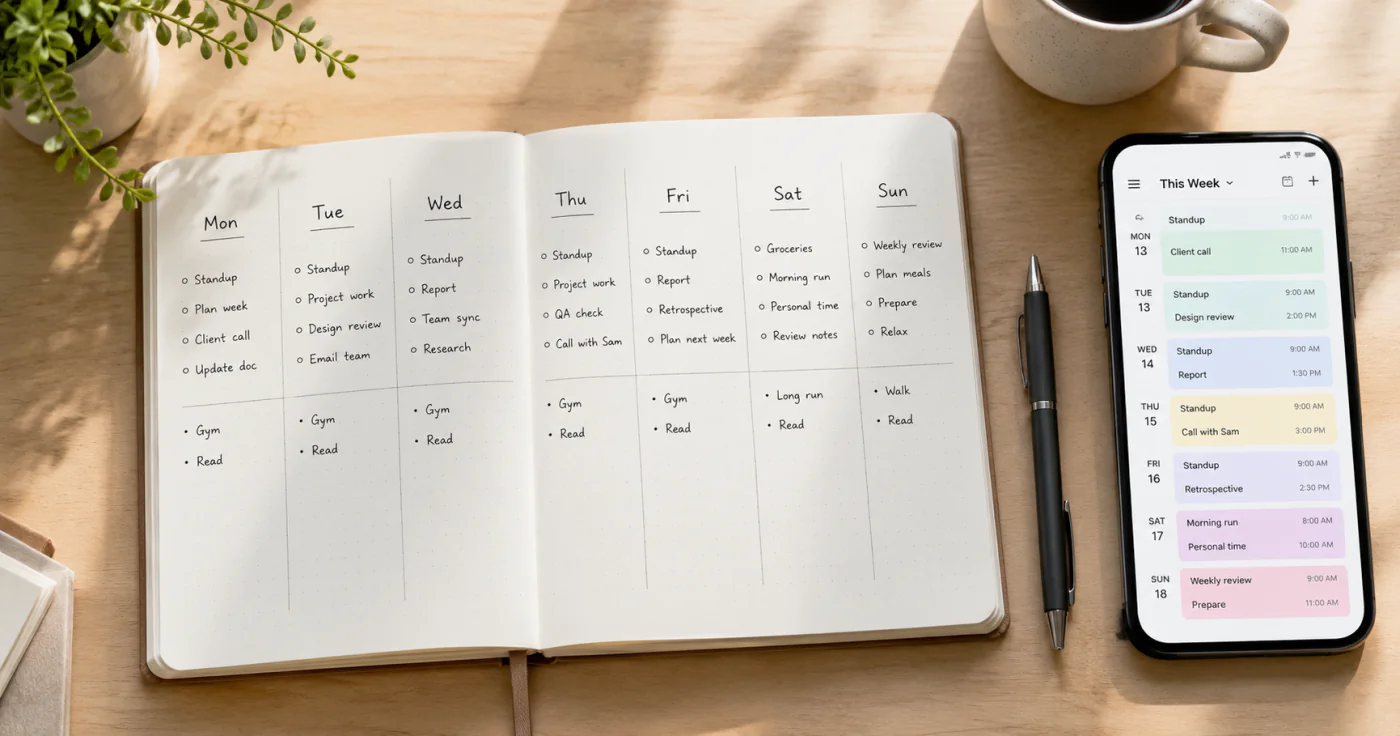
| A calendar-led routine | Calendar behavior you have tested | Treating a task list as a full calendar replacement |
| Apple or Microsoft devices | The official app’s supported device workflow | Assuming support extends to every device you own |
| A family list | Confirmed shared editing and update visibility | Confusing a shared link with shared editing |
| Heavy task management | Projects, priorities, views, and review habits | Building a system too complex to maintain |
Use this table to make a short list of candidates, then verify each product’s current official details before you move your whole system.
Start with a minimal personal checklist when capture is the problem
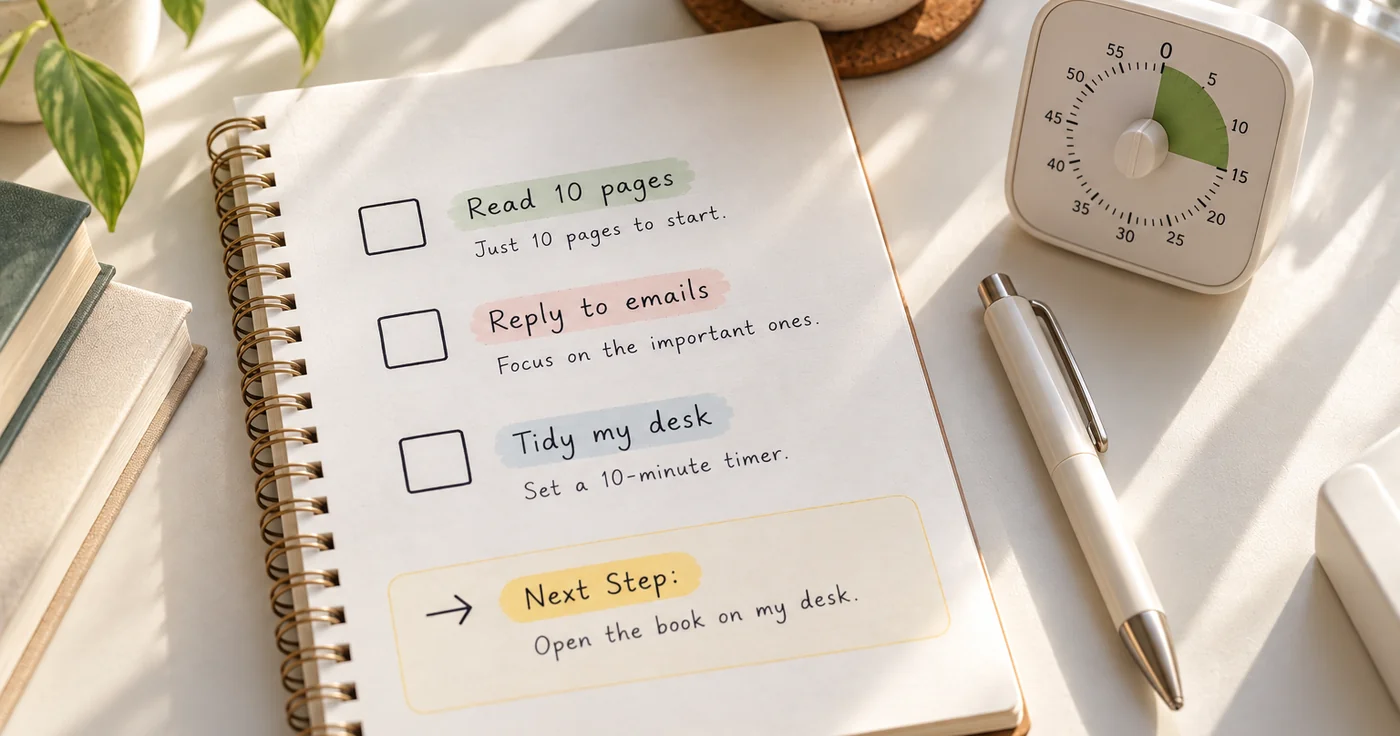
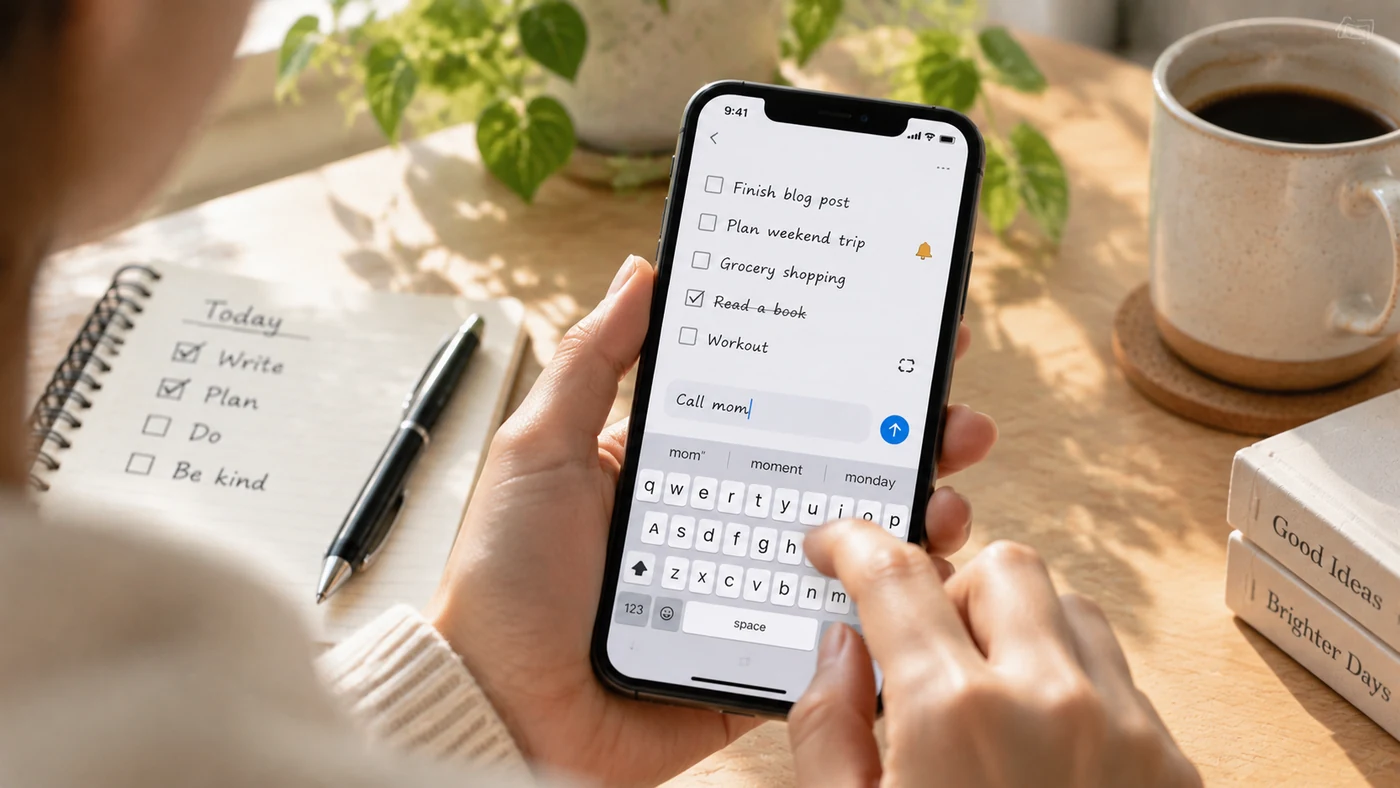
If tasks disappear because you do not record them, prioritize the shortest path from thought to list. Test whether you can create a task quickly on the phone you carry, recognize it later, and give it a due date or reminder when needed.
The tool matters less than the habit at this stage. For the underlying list structure, see How to Make a To-Do List. Keep your first list small enough to review every day.
Check recurring tasks with a real example
Recurring tasks are useful for bills, reviews, regular errands, and routines. But a repeat setting is only helpful when you can understand when the next task appears and how to skip, reschedule, or stop it.
Todoist documents recurring dates and natural-language date entry, which makes it one example to evaluate if recurrence is central to your workflow. [2] Test any candidate with one real task, such as a weekly planning review, before relying on it for a long schedule.
Separate shared editing from sending someone a list
Families and roommates often need more than a list they can forward. Before choosing an app for a household, confirm who can edit, how changes appear, whether everyone sees updates, and what happens when one person is offline. Use a real shared grocery or errand list for the test.
Microsoft To Do is Microsoft’s to-do app. Its App Store listing describes cross-device use, shared lists, and one-time or recurring reminders. [3] That makes it a relevant candidate to investigate if those are your needs, but it does not establish that it is the right choice for every device mix or household.
Use a phone for capture, not for a complicated setup
To-do lists work best on a phone when entering a task takes less effort than trying to remember it. Add the task, give it a plain-language name, and decide whether it needs a date, a repeat rule, or no reminder at all. Avoid building categories, priorities, and projects while you are in a hurry.
If your task is actually a sequence of steps, turn it into a checklist rather than a vague task. How to Make a Checklist can help you decide what belongs in that sequence.
Treat reminders and widgets as a workflow test
Reminders and Home Screen Widgets can help you return to a list, but they do not make a task system work by themselves. Check whether a reminder reaches you at the right time, whether recurring settings match your routine, and whether a widget reduces the number of taps needed to capture or review a task.
For a reminder habit that is tied to a specific action, see How to Set Daily Reminders. Verify each candidate’s current permissions, device behavior, and plan limits before relying on a notification.
Frequently Asked Questions
What is the best app to make a to-do list?
There is no best app for every list. Choose a minimal tool when you need fast personal capture, a recurrence-focused tool when routines matter, a shared-editing tool when several people maintain the same list, and a more structured tool only when you will use its project features. Compare current official details for the few candidates that match your situation.
Is there a Microsoft To Do app?
Yes. Microsoft To Do is Microsoft’s to-do app, and its App Store listing describes cross-device access, shared lists, and one-time or recurring reminders. [3] Check the current listing and Microsoft’s official pages for the device and account details that apply to you.
What is the best daily checklist app?
The best daily checklist app is one you can open, understand, and review without rebuilding it every morning. Look for quick capture, clear checkboxes, the reminder behavior you need, and only as much organization as you will maintain. Test it with one real day before moving every routine into it.
Conclusion
Choose a to-do list app by the point where tasks currently fail: capture, recurrence, household coordination, or project review. Test one real workflow for a week, including a missed reminder and a rescheduled task, before you commit to a larger system.
If you need a personal checklist with quick capture, organization, note-level reminders, and a mobile Home Screen Widget, EasyNotes can be a natural fit. It is not a real-time family-sharing, calendar-sync, or team task-management tool.