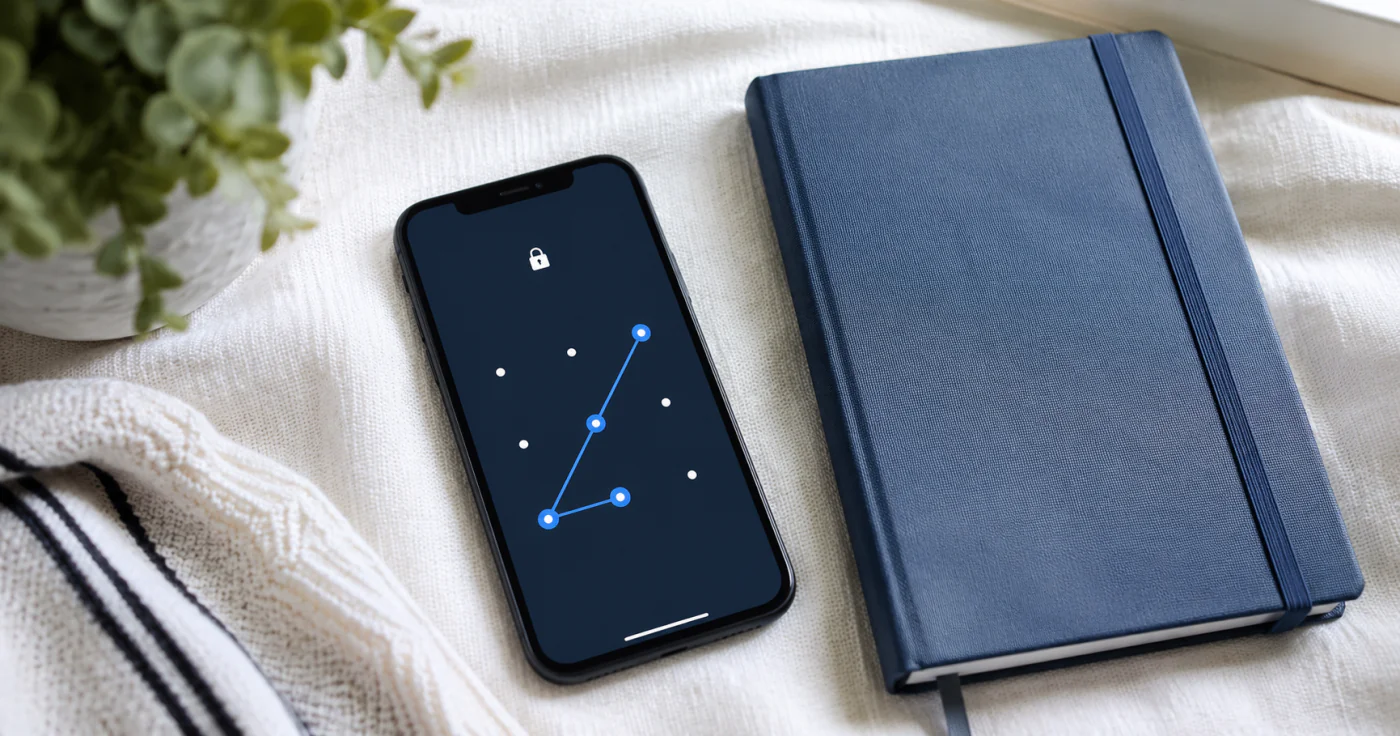
Locking a note adds a password, fingerprint, or face unlock so no one else can read it if they pick up your phone. It's the right move for anything sensitive — logins, financial details, medical info. Here's how note locking works and what to check before you rely on it.
When to Lock a Note
Lock notes that would cause real trouble if read by someone else: saved passwords or account hints, financial figures, health details, legal drafts, or private journal entries. Everyday shopping lists and meeting notes usually don't need it. Reserve locking for the few notes where privacy actually matters, so the feature stays meaningful.
How Note Locking Works
The exact labels vary by app, but the flow is consistent across mainstream note apps:
- Open the note you want to protect.
- Choose Lock (often a lock or shield icon, or inside the note's "more" menu).
- Set a password, or use biometrics. Some apps let you use your device passcode; others ask for a separate notes password.
- Confirm and save. The note's contents are now hidden until unlocked.
- Test unlocking once. Make sure you can open it with your password or face/fingerprint before you trust it.
Apple's own notes feature, for example, secures a note with a password, Face ID, or Touch ID, uses one password for locked notes in an account, and explicitly cannot lock a note you share with someone else[1].
What Locking Does and Doesn't Cover
| Locking protects | Locking does not cover |
|---|---|
| The note's text from someone with your unlocked phone | Notes already shared with other people |
| Sensitive logins, finance, or health details | A note if you forget the password and have no biometrics |
| A single note or a whole category | Attachments or synced copies you didn't secure |
| Local viewing without your password | Access if you've written the password where others can see it |
A Note on Shared Notes
Most note-locking is designed for notes only you open. If a note is shared with someone else, locking typically doesn't apply, because the other person needs to read it. For anything sensitive, keep it in a private note and share a copy only when the other person must see it — don't rely on a lock that the sharing setup bypasses.
Keep Your Locked Notes Safe
Apps such as EasyNotes let you lock an individual note or an entire category with a password, so private entries stay readable only by you. A few habits make the lock actually useful: pick a password you won't forget, turn on biometric unlock if available, and avoid writing the password where someone else could find it. If you ever forget it, check the app's recovery rules first — many locks are deliberately unrecoverable by the company, which is the point.
FAQ
Open the note, tap the lock or shield icon (or find it in the note's "more" menu), then set a password or enable Face ID or Touch ID. Save it, and the note's contents stay hidden until you unlock them. Test unlocking once to be sure it works.
Yes, in apps that support it. You usually set a password first and then enable Face ID or Touch ID as a faster way to unlock. If biometrics fail, the password is your fallback — so keep that password memorable.
It depends on the app, but many note-locking systems are deliberately unrecoverable by the company — that's what keeps them private. Resetting the password often locks you out of previously locked notes for good. Pick a password you can remember, and consider a hint.
Usually no. Note locking is built for notes only you open; a note you've shared with another person typically can't be locked, because the other person needs to read it. Keep sensitive content in a private note and share a copy only when necessary.
Conclusion
Locking a note is simple: open it, set a password or biometrics, and confirm. The real care is in the edges — don't lock shared notes, remember your password, and know what the lock does and doesn't cover. Do that and your most private notes stay private even when your phone isn't in your hands.
References
- Apple Support. "Lock or unlock notes on your iPhone or iPad"